Ryzen AI ミニPCでローカルLLMを実用速度で動かす完全ガイド(2026年版) The Complete Guide to Running a Local LLM at Usable Speed on a Ryzen AI Mini PC (2026 Edition)
はじめに
Ryzen AI 搭載のミニPCは、内蔵 GPU(Radeon 890M)と大容量メモリを積んでいて、 ローカル LLM を動かす機体として人気があります。 ただ、何も考えずに入れると CPU で推論してしまい、遅くて使い物になりません。
このシリーズでは、環境を一度まっさらにしてから組み直し、速度と品質を測ってきました。 この記事は、その結果を最短で再現するための手順書です。細かい理由は各回の記事に譲ります。
到達点: Qwen3.6-35B-A3B が 毎秒 17.5〜22.6 トークン。旧環境(CPU 推論)の約 7 倍です。
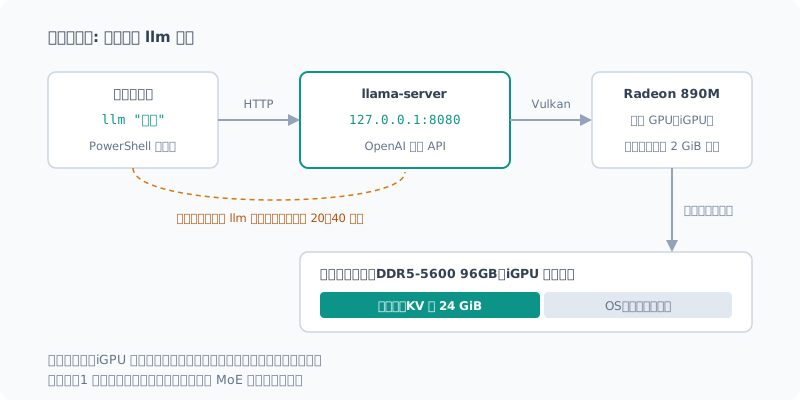
ターミナルで llm "質問" と打てば、サーバが止まっていても自動で立ち上がって答えが返ります。
動作確認した環境
| 項目 | 内容 |
|---|---|
| CPU / GPU | Ryzen AI 9 HX 370 / Radeon 890M(gfx1150) |
| メモリ | DDR5-5600 96GB(OS 認識 93.6 GB。iGPU 専用は 2 GiB) |
| OS | Windows 11 Pro 26200 / AMD Software 26.8.1 |
| llama.cpp | b11026(winget の Vulkan ビルド) |
| モデル | unsloth/Qwen3.6-35B-A3B-MTP-GGUF:UD-Q4_K_XL(21.27 GiB) |
この記事の手順と数字は、b11026 で確かめたものです。 winget にはより新しい版(b11193)が出ていますが、試していません。 更新するとオプションや速度が変わる可能性があります。
1. 古い環境を片付ける
以前に Ollama や LM Studio、Lemonade などを入れていたら、先に止めて消しておきます。 同じ GPU とメモリを奪い合うので、残っていると速度が安定しません。
- 常駐サービス(トレイアイコン、Windows サービス)を止める
- 古いモデルのキャッシュ(Hugging Face の
~\.cache\huggingfaceなど)を必要に応じて消す
消したあとに空き容量で効果を確かめるなら、OneDrive などの同期を止めてからにしてください。 私の環境では、69 GB 消したのに空き容量が 150 GB 減りました。裏で OneDrive が毎分 6 GB 書き込んでいたためです。
詳しくは掃除の回にまとめています。
2. llama.cpp(Vulkan 版)を入れる
winget install --id ggml.llamacppインストールしたら、ターミナルを開き直します。 開いたままのターミナルは古い PATH を持っているので、
llama-server が見つからないと言われます(私はこれで「インストールされていない」と誤診しました)。
GPU が見えているかを確かめます。
llama-server --list-devicesAvailable devices:
Vulkan0: AMD Radeon(TM) 890M Graphics (78739 MiB, 74802 MiB free)Vulkan0 に 890M が出ていれば準備完了です。
なぜ Vulkan か。 同じモデルで生成速度を比べると、CPU が 2.59 t/s、ROCm が 4.76 t/s、 Vulkan が 13.41 t/s でした。この機体では Vulkan が圧倒的に速いです。
3. モデルを選ぶ
MoE(Mixture of Experts)のモデルを選びます。 これがいちばん大きな判断です。
| モデル | ファイル | 生成 | 読み込み |
|---|---|---|---|
| Qwen3.8-27B(密) | 16.23 GiB | 3.6 t/s | 29.6 t/s |
| Qwen3.6-35B-A3B(MoE) | 20.74 GiB | 20.7 t/s | 281 t/s |
ファイルが大きい MoE のほうが 5.7 倍速い。 iGPU の生成速度はメモリから重みを読む速さ(帯域)でほぼ決まり、 MoE は 1 トークンごとに全体の一部しか読まないからです。 **「総パラメータ数」ではなく「1 トークンあたり何バイト読むか」**で選んでください。
Qwen3.6-35B-A3B には、MTP(投機デコード用の層)を含むビルドがあります。
下の設定で使うので、-MTP-GGUF の版を選びます。
4. サーバを起動する
llama-server -hf unsloth/Qwen3.6-35B-A3B-MTP-GGUF:UD-Q4_K_XL `
  --port 8080 -c 65536 -ngl 99 -b 8192 -fa on --kv-unified --jinja `
  --no-mmproj --spec-type draft-mtp --spec-draft-n-max 2 `
  --sleep-idle-seconds 43200
初回は約 22 GB のダウンロードが走ります。2 回目以降はキャッシュから読むだけです。
| オプション | 意味 | 効果(実測) |
|---|---|---|
-ngl 99 | 全層を GPU に載せる | 必須 |
-c 65536 | コンテキスト長 | 2 万トークン級のコードレビューも入る |
-b 8192 | バッチサイズ | 読み込み +26% |
--spec-type draft-mtp --spec-draft-n-max 2 | MTP 投機デコード | 散文 +12.6%、コード +33.4% |
--no-mmproj | 画像用の部品を読まない | メモリ −1.1 GiB(テキストだけなら困らない) |
--sleep-idle-seconds 43200 | 12 時間使わなければモデルをメモリから降ろす | 常駐させてもメモリを抱えっぱなしにしない |
--jinja | モデル同梱のチャットテンプレートを使う | 必須 |
入れても意味がないものもあります。-ub は横ばい、--cache-reuse はこのモデルでは無効、
-ctv q8_0(V の量子化)は遅くなります。
一覧は効くもの・効かないものの回にまとめました。
動いたか確かめる
ブラウザで http://127.0.0.1:8080 を開くと、llama.cpp 付属のチャット画面が使えます。
OpenAI 互換の API も出ているので、http://127.0.0.1:8080/v1 を指定すれば、たいていのツールから繋がります。
5. llm と打つだけで使えるようにする
毎回サーバを起動するのは面倒なので、止まっていれば自動で起動する関数を PowerShell のプロファイルに置きます。
notepad $PROFILE次の関数を貼り付けます。
function llm {
  param([Parameter(Mandatory)][string]$Prompt, [int]$Port = 8080)
  $url = "http://127.0.0.1:$Port"
  $ready = { try { (Invoke-WebRequest "$url/health" -TimeoutSec 2 -SkipHttpErrorCheck).StatusCode -eq 200 } catch { $false } }
  if (-not (& $ready)) {
    Write-Host 'サーバを起動しています(初回は 40 秒ほど)...'
    $a = @('-hf','unsloth/Qwen3.6-35B-A3B-MTP-GGUF:UD-Q4_K_XL','--port',"$Port",'-c','65536','-ngl','99',
           '-b','8192','-fa','on','--kv-unified','--jinja','--no-mmproj',
           '--spec-type','draft-mtp','--spec-draft-n-max','2','--sleep-idle-seconds','43200')
    Start-Process llama-server -ArgumentList $a -WindowStyle Hidden
    while (-not (& $ready)) { Start-Sleep 2 }
  }
  $body = @{ model = 'local'; messages = @(@{ role = 'user'; content = $Prompt })
             chat_template_kwargs = @{ enable_thinking = $false } } | ConvertTo-Json -Depth 5
  $r = Invoke-RestMethod "$url/v1/chat/completions" -Method Post -ContentType 'application/json; charset=utf-8' `
         -Body ([Text.Encoding]::UTF8.GetBytes($body))
  $r.choices[0].message.content
}
新しいターミナルで試します。
llm "1+1は?数字だけ答えて"私の環境では、サーバが止まっている状態からの 1 回目が 26 秒(起動を含む)、2 回目が 1.0 秒でした。
PowerShell 7 で確かめています(-SkipHttpErrorCheck は 7 以降のオプションです)。
この関数は最小限です。応答を少しずつ表示する、対話モードにする、サーバを止める、といった機能は CLI の回で作っています。
thinking は切ってあります(enable_thinking = $false)。
定型の質問では、thinking を有効にしても正答率は変わらず、時間が 3 倍になったためです(thinking の回)。
6. つまずきやすい点
実際に踏んだものだけを並べます。
| 症状 | 原因 | 対処 |
|---|---|---|
| 短い質問でも毎回 2 秒待たされる | localhost が IPv6 に解決され、IPv4 への切り替えに約 2 秒かかる | 接続先を 127.0.0.1 にする(2.10 秒 → 0.05 秒) |
llama-server が見つからない | winget のあと、ターミナルが古い PATH のまま | ターミナルを開き直す |
request (19303 tokens) exceeds the available context size | -c が小さい | -c 65536 などに上げる |
| メモリを 48 GB 食っている | サーバを止めきる前に次を起動して、2 つ動いていた | 止まったのを確かめてから起動する |
.cmd から呼ぶと '。' is not recognized | バッチファイルのコメントに日本語を書いた | .cmd は ASCII だけで書く |
| Python から設定ファイルが見えない | Store 版 Python は %APPDATA% を別の場所に振り替える | 読む側と同じ Python で書き込む |
| 速度が測るたびに 1 割ぶれる | 裏で別の処理(同期、別のアプリ)が動いている | 測るときは裏を止める(ベンチマークの取り方) |
いちばん効くのは 1 行目です。localhost と書いているところは、全部 127.0.0.1 に替えてください。
長い文書を扱うなら
この設定のまま、コンテキストは 256K まで伸ばせます(メモリは 28 GiB で収まります)。ただし注意点があります。
- 読み込みが重い: 128K トークンの文書を読ませるのに 18〜24 分かかる
- 2 回目からは速い: 同じ文書に別の質問をすると、読み直すのは末尾だけで 11 秒
- 文書を先、質問を後に置く。途中を書き換えると全部読み直しになる
まとめ
- 古い環境を止めて片付ける
winget install --id ggml.llamacppで Vulkan 版を入れ、ターミナルを開き直す- MoE モデル(Qwen3.6-35B-A3B の MTP 版)を選ぶ
-b 8192、MTP(n-max 2)、--no-mmprojを付けて起動するllm関数をプロファイルに置き、127.0.0.1で繋ぐ
速度を決めるのは、Vulkan を使うこととMoE を選ぶことの 2 つです。 細かい設定は、そこから 1〜3 割を上乗せするものだと考えてください。
Introduction
Mini PCs with Ryzen AI have an integrated GPU (Radeon 890M) and a lot of memory, which makes them a popular machine for running local LLMs. But if you install things without thinking, inference ends up running on the CPU, and it’s too slow to be useful.
In this series, I wiped my environment clean, rebuilt it, and measured speed and quality along the way. This post is a step-by-step guide to reproduce those results as quickly as possible. I leave the detailed reasoning to the individual posts.
Where you end up: Qwen3.6-35B-A3B at 17.5–22.6 tokens per second. That’s about 7× the old setup (CPU inference).
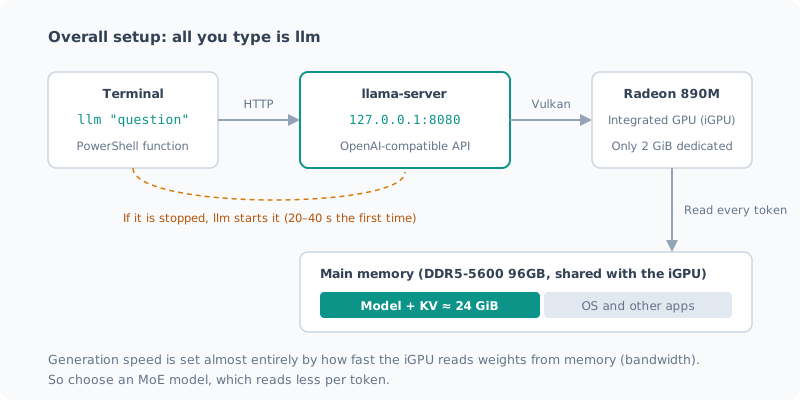
Type llm "question" in the terminal, and even if the server is stopped, it starts automatically and the answer comes back.
Tested Environment
| Item | Details |
|---|---|
| CPU / GPU | Ryzen AI 9 HX 370 / Radeon 890M (gfx1150) |
| Memory | DDR5-5600 96GB (93.6 GB seen by the OS; 2 GiB dedicated to the iGPU) |
| OS | Windows 11 Pro 26200 / AMD Software 26.8.1 |
| llama.cpp | b11026 (Vulkan build from winget) |
| Model | unsloth/Qwen3.6-35B-A3B-MTP-GGUF:UD-Q4_K_XL (21.27 GiB) |
The steps and numbers in this post were verified on b11026. A newer version (b11193) is available on winget, but I haven’t tried it. Updating may change the options or the speed.
1. Clean Up the Old Environment
If you previously installed Ollama, LM Studio, Lemonade or similar, stop and remove them first. They compete for the same GPU and memory, so if they’re still around, the speed won’t be stable.
- Stop resident services (tray icons, Windows services)
- Delete old model caches (such as Hugging Face’s
~\.cache\huggingface) as needed
If you want to confirm the effect by looking at free space after deleting, pause syncing such as OneDrive first. On my machine, I deleted 69 GB and free space went down by 150 GB. OneDrive was writing 6 GB per minute in the background.
Details are in the cleanup post.
2. Install llama.cpp (Vulkan Build)
winget install --id ggml.llamacppAfter installing, reopen the terminal. A terminal that was already open still has the old PATH,
so it says llama-server can’t be found (I misdiagnosed this as “not installed”).
Check that the GPU is visible.
llama-server --list-devicesAvailable devices:
Vulkan0: AMD Radeon(TM) 890M Graphics (78739 MiB, 74802 MiB free)If the 890M shows up as Vulkan0, you’re ready.
Why Vulkan? Comparing generation speed on the same model, CPU was 2.59 t/s, ROCm 4.76 t/s, and Vulkan 13.41 t/s. On this machine, Vulkan is by far the fastest.
3. Choose a Model
Choose an MoE (Mixture of Experts) model. This is the biggest decision.
| Model | File | Generation | Prompt processing |
|---|---|---|---|
| Qwen3.8-27B (dense) | 16.23 GiB | 3.6 t/s | 29.6 t/s |
| Qwen3.6-35B-A3B (MoE) | 20.74 GiB | 20.7 t/s | 281 t/s |
The MoE model, despite the bigger file, is 5.7× faster. On an iGPU, generation speed is almost entirely set by how fast weights are read from memory (bandwidth), and an MoE model reads only part of the whole for each token. Choose by “how many bytes are read per token”, not by “total parameter count”.
Qwen3.6-35B-A3B has builds that include MTP (layers for speculative decoding).
The settings below use it, so pick the -MTP-GGUF version.
4. Start the Server
llama-server -hf unsloth/Qwen3.6-35B-A3B-MTP-GGUF:UD-Q4_K_XL `
  --port 8080 -c 65536 -ngl 99 -b 8192 -fa on --kv-unified --jinja `
  --no-mmproj --spec-type draft-mtp --spec-draft-n-max 2 `
  --sleep-idle-seconds 43200
The first run downloads about 22 GB. After that, it just reads from the cache.
| Option | Meaning | Effect (measured) |
|---|---|---|
-ngl 99 | Put all layers on the GPU | Required |
-c 65536 | Context length | Fits even a 20K-token-class code review |
-b 8192 | Batch size | Prompt processing +26% |
--spec-type draft-mtp --spec-draft-n-max 2 | MTP speculative decoding | Prose +12.6%, code +33.4% |
--no-mmproj | Don’t load the image component | Memory −1.1 GiB (no loss if you only use text) |
--sleep-idle-seconds 43200 | Unload the model from memory after 12 hours unused | Stays resident without holding memory forever |
--jinja | Use the chat template bundled with the model | Required |
There are also options that don’t help. -ub is flat, --cache-reuse doesn’t work with this model,
and -ctv q8_0 (V quantization) makes it slower.
The full list is in the post on what helps and what doesn’t.
Check That It Works
Open http://127.0.0.1:8080 in a browser and you can use the chat screen that comes with llama.cpp.
It also exposes an OpenAI-compatible API, so most tools can connect if you point them at http://127.0.0.1:8080/v1.
5. Make It Usable by Just Typing llm
Starting the server every time is a chore, so I put a function that starts it automatically if it’s stopped in my PowerShell profile.
notepad $PROFILEPaste in the following function.
function llm {
  param([Parameter(Mandatory)][string]$Prompt, [int]$Port = 8080)
  $url = "http://127.0.0.1:$Port"
  $ready = { try { (Invoke-WebRequest "$url/health" -TimeoutSec 2 -SkipHttpErrorCheck).StatusCode -eq 200 } catch { $false } }
  if (-not (& $ready)) {
    Write-Host 'サーバを起動しています(初回は 40 秒ほど)...'
    $a = @('-hf','unsloth/Qwen3.6-35B-A3B-MTP-GGUF:UD-Q4_K_XL','--port',"$Port",'-c','65536','-ngl','99',
           '-b','8192','-fa','on','--kv-unified','--jinja','--no-mmproj',
           '--spec-type','draft-mtp','--spec-draft-n-max','2','--sleep-idle-seconds','43200')
    Start-Process llama-server -ArgumentList $a -WindowStyle Hidden
    while (-not (& $ready)) { Start-Sleep 2 }
  }
  $body = @{ model = 'local'; messages = @(@{ role = 'user'; content = $Prompt })
             chat_template_kwargs = @{ enable_thinking = $false } } | ConvertTo-Json -Depth 5
  $r = Invoke-RestMethod "$url/v1/chat/completions" -Method Post -ContentType 'application/json; charset=utf-8' `
         -Body ([Text.Encoding]::UTF8.GetBytes($body))
  $r.choices[0].message.content
}
Try it in a new terminal.
llm "1+1は?数字だけ答えて"On my machine, the first call with the server stopped took 26 seconds (including startup), and the second took 1.0 second.
I verified this on PowerShell 7 (-SkipHttpErrorCheck is an option from 7 onward).
This function is the bare minimum. Streaming the response, an interactive mode, stopping the server and so on are built in the CLI post.
Thinking is turned off (enable_thinking = $false).
For routine questions, turning thinking on didn’t change the accuracy and tripled the time (the thinking post).
6. Common Stumbling Points
These are only the ones I actually ran into.
| Symptom | Cause | Fix |
|---|---|---|
| Every request waits 2 seconds, even short ones | localhost resolves to IPv6, and falling back to IPv4 takes about 2 seconds | Connect to 127.0.0.1 (2.10 s → 0.05 s) |
llama-server can’t be found | After winget, the terminal still has the old PATH | Reopen the terminal |
request (19303 tokens) exceeds the available context size | -c is too small | Raise it, e.g. -c 65536 |
| It’s eating 48 GB of memory | I started the next one before the server had fully stopped, so two were running | Confirm it has stopped before starting |
Calling from a .cmd gives '。' is not recognized | I wrote Japanese in a batch file comment | Write .cmd files in ASCII only |
| Python can’t see the config file | Store Python redirects %APPDATA% to a different location | Write with the same Python that reads it |
| Speed swings by 10% every time I measure | Something else (sync, another app) is running in the background | Stop the background work when measuring (how to benchmark) |
The first row matters most. Wherever you’ve written localhost, change it all to 127.0.0.1.
If You Work With Long Documents
With these same settings, you can extend the context up to 256K (memory stays within 28 GiB). There are caveats, though.
- Reading is heavy: feeding in a 128K-token document takes 18–24 minutes
- It’s fast from the second time: asking a different question about the same document only rereads the end, in 11 seconds
- Put the document first and the question after. Rewriting the middle means rereading everything
For details, see the 128K post and the cache post.
Summary
- Stop and clean up the old environment
- Install the Vulkan build with
winget install --id ggml.llamacpp, then reopen the terminal - Choose an MoE model (the MTP version of Qwen3.6-35B-A3B)
- Start it with
-b 8192, MTP (n-max 2) and--no-mmproj - Put the
llmfunction in your profile and connect via127.0.0.1
Two things decide the speed: using Vulkan and choosing MoE. Think of the finer settings as adding another 10–30% on top of that.
関連記事 Related Posts
Ryzen AI PCのローカルLLMを7倍速くした話(llama.cpp + Vulkan + Qwen) How I Made the Local LLM on My Ryzen AI PC 7 Times Faster (llama.cpp + Vulkan + Qwen)
まっさらにしたRyzen AI 9 HX 370機に、llama.cppとVulkanでローカルLLM環境を作り直しました。CPU推論から約7倍。最新モデルを選んで失敗した話と、ファイルが大きいほうが速いという実測結果をまとめます。 I rebuilt the local LLM setup on my freshly wiped Ryzen AI 9 HX 370 machine with llama.cpp and Vulkan: about 7 times faster than CPU inference. Here's how picking the newest model backfired, and measurements showing the bigger file was faster.
ローカルLLMにメモリは何GB必要か: 96GB積んだミニPCで実測した How Much Memory Does a Local LLM Need? Measured on a Mini PC with 96GB
Ryzen AI ミニPCに96GBのメモリを積んでローカルLLMを動かし、実際に何GB使っているかを測りました。35BのMoEモデルで24GiB、コンテキストを上限の256Kまで伸ばしても28GiB程度です。32GB・64GB・96GBでそれぞれ何ができそうかを、実測と推定を分けて整理します。 I ran a local LLM on a Ryzen AI mini PC with 96GB of memory and measured how many GB it actually uses. A 35B MoE model takes 24GiB, and even with the context stretched to its 256K limit, it stays around 28GiB. I sort out what 32GB, 64GB and 96GB are each likely to handle, keeping measurements and estimates apart.
Ryzen AI の NPU を使わなかった理由 Why I Didn't Use the Ryzen AI NPU
50 TOPS の NPU を積んだ機体でローカルLLMを動かしてきましたが、一度も NPU を使っていません。使えるのか調べたら、動く保証がなく、動いても iGPU より遅く、最大の利点が自分の使い方では効かないと分かりました。インストーラを落としたところで止めた記録です。 I've been running local LLMs on a machine with a 50 TOPS NPU, but I've never used the NPU. When I looked into whether I could, I found there's no guarantee it runs, it's slower than the iGPU even if it does, and its biggest advantage doesn't apply to how I use it. A record of stopping right after downloading the installer.