ローカルLLMをターミナルから日常的に使えるようにした Making a Local LLM Part of My Daily Terminal Use
はじめに
前回、ローカルLLMを7倍速くしました。 生成 20 t/s 前後。数字としては満足でした。
そしてほとんど使いませんでした。
理由は単純で、使うまでが面倒だったからです。
pwsh -File C:\Projects\local-llm\scripts\serve.ps1
# …40秒待つ…
# ブラウザで localhost:8080 を開く
ターミナルで作業している最中に、これをやる気にはなりません。 速いかどうか以前に、動線が長すぎました。
今回はここを潰します。目標は「PC を起動して llm と打ったら答えが返る」。
完成形
llm "PowerShellでファイル一覧を取得するには?"llm # 引数なしで対話モードサーバの起動は気にしません。止まっていれば勝手に立ち上がります。
面倒さをどこに隠すか
「使う前にサーバを起動する」という手順が要るなら、 選択肢は 2 つです。
- 常駐させる — 起動時に立ち上げっぱなしにする
- 遅延起動 — 必要になった瞬間に立ち上げる
最初は 1 を考えました。タスクスケジューラに登録すればすぐです。 ただ、このモデルは常時 24 GB を抱えます。 96 GB 積んでいるので余裕はありますが、 週に数回しか使わない日もあるのに 24 GB を寝かせ続けるのは気が進みませんでした。
選んだのは 2 です。クライアント側でこうしました。
llm "質問"
  ↓
サーバは動いている?
  ├─ Yes → そのまま聞く
  └─ No  → 裏で起動 →(約40秒)→ 聞く
初回だけ 40 秒待ちますが、一度立ち上がれば次からは待ちなし。 手順が消えるのではなく、手順が見えなくなるのが狙いです。
使わない時間は 24 GB を返してほしい
遅延起動にしても、一度使うと立ち上がりっぱなしです。 朝に一度聞いて、そのまま夜まで 24 GB を抱えている。
「12 時間使わなかったら落とす」仕組みを自分で書こうとして、
その前に --help を眺めたら、ありました。
--sleep-idle-seconds SECONDS
number of seconds of idleness after which the server will sleep説明が一行なので、メモリが本当に解放されるのかは分かりません。 60 秒に設定して測りました。
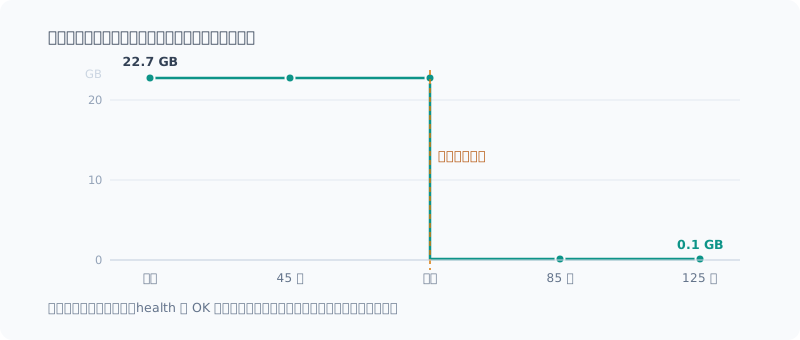
リクエスト直後 : 22.7 GB
45 秒後        : 22.7 GB
85 秒後        : 0.1 GB   ← 22.6 GB 解放
125 秒後       : 0.1 GB
health         : OK
解放されました。 しかもプロセスは生きたままで、
health は OK を返し続けます。次のリクエストで自動的に復帰します。
自前で「12 時間経ったらプロセスを殺すタスク」を書くつもりでしたが、 フラグ 1 つで済みました。しかも殺さないので、復帰はモデルの再読み込みだけです。
運用値は 12 時間(43200 秒)にしました。
--sleep-idle-seconds 43200ここでの教訓は「自分で書く前に
--helpを読む」に尽きます。 書き始めていたら、プロセス監視のタスクを作って、 殺すタイミングを考えて、復帰の 40 秒をまた作り直していました。
48 GB 占有していた
動くようになったので、停止と再起動を確認しました。そこで見つけました。
PID 105720  23.95 GB  ← ポート 8080 を保持(正常)
PID  94128  23.96 GB  ← ポートを取れなかった孤児
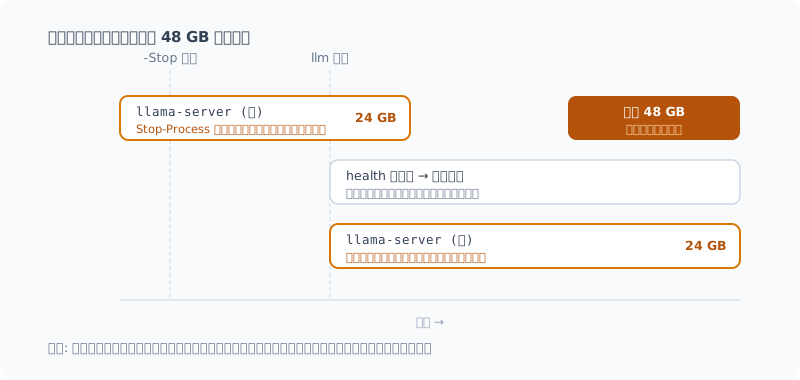
llama-server が 2 つ動いて、合わせて 48 GB。 半分は完全な無駄です。
原因はこれでした。
# 直す前
$p = Get-Process llama-server -ErrorAction SilentlyContinue
if ($p) { $p | Stop-Process -Force }   # ← 投げっぱなしで即座に返る
Stop-Process は終了を待ちません。24 GB を抱えたプロセスが片付くには数秒かかります。
その隙に llm を叩くと、
healthを叩く → まだ死にかけているので応答なし- 「サーバは落ちている」と判断
- 2 つ目を起動
- 2 つ目はポートを取れない。でもモデルは読み込み済みなので居座る
ポートが取れなかった側は仕事をしないまま 24 GB を抱え続けます。
llm は 1 つ目(まだ生きている方)から答えを受け取れてしまうので、
成功しているように見えます。気づいたのは、たまたまプロセス一覧を見たからでした。
直し方
停止側は、消えるまで待つようにしました。
$procs | Stop-Process -Force
foreach ($i in 1..30) {
    Start-Sleep -Milliseconds 500
    if (-not (Get-Process llama-server -ErrorAction SilentlyContinue)) { return $true }
}起動側は、「応答しないのにプロセスが居る」状態を疑うようにしました。 これは 2 つの場合がありえます。
- 起動途中でまだモデルを読んでいる → 待てばよい
- ポートを取れなかった孤児 → 片付けるべき
見分けはつかないので、まず 2 分待って、それでも応答しなければ孤児とみなします。
$existing = @(Get-Process llama-server -ErrorAction SilentlyContinue)
if ($existing.Count -gt 0) {
    # 起動途中かもしれないので、まず待つ
    ...
    # 2 分待って応答しないなら孤児
    [void](Stop-Server)
}
修正後、停止は 3.2 秒で完全終了を確認してから返り、
停止直後に llm を叩いてもプロセスは 1 個のままになりました。
「成功しているように見える失敗」が一番たちが悪い。 エラーも出ず、答えも返ってくる。 ただ静かにメモリが食われているだけ。 定期的にプロセス一覧を眺める習慣は、無駄ではありませんでした。
どこからでも llm と打てるようにする
PowerShell プロファイルに関数を 1 つ置きました。
function llm {
    $script = 'C:\Projects\local-llm\scripts\llm.ps1'
    if (-not (Test-Path $script)) {
        Write-Host "llm.ps1 が見つかりません: $script" -ForegroundColor Red
        return
    }
    & $script @args
}
@args で引数をそのまま渡しているので、
llm -Think "..." や llm -Stop もそのまま通ります。
プロファイルの場所は環境で違うので、$PROFILE.CurrentUserAllHosts で確認します。
うちは OneDrive 配下でした。他の PC にも同期されますが、
同期先にスクリプトが無ければ「見つかりません」と出るだけで実害はありません。
ストリーミングしないと体感が変わる
最初は応答が全部できてから表示していました。 20 t/s なので、300 トークンの回答だと 15 秒間なにも起きません。
速度は同じでも、これは「遅い」と感じます。 OpenAI 互換 API は SSE でストリーミングできるので、そちらに変えました。
while (-not $reader.EndOfStream) {
    $line = $reader.ReadLine()
    if (-not $line.StartsWith('data: ')) { continue }
    $data = $line.Substring(6)
    if ($data -eq '[DONE]') { break }
    $delta = ($data | ConvertFrom-Json).choices[0].delta
    if ($delta.content) { Write-Host $delta.content -NoNewline }
}
応答の最後に実測を出すようにもしました。
[16.5 秒 / 約 17.3 tok/s]自分の環境が遅くなったときに気づけます。
thinking は切っておく
Qwen3.6 は既定で thinking が有効です。
OpenAI 互換 API では、思考が reasoning_content、最終回答が content に分かれて返ります。
これがトークンを大量に食います。
「日本語で1文だけ自己紹介してください」という質問に対して、
思考に 1313 文字使っていました。max_tokens=100 だと思考だけで尽きて、
content が空で返ってきます。
CLI の即答用途では切りました。
{ "chat_template_kwargs": { "enable_thinking": false } }必要なときだけ llm -Think "..." で有効にします。
思考部分はグレーで表示されるので、本文と混ざりません。
まとめ
- 速くしただけでは使わない。 動線が長いと、速度は関係なく使わなくなる
- 常駐か遅延起動かは、メモリと初回待ちのトレードオフ。 週に数回なら遅延起動のほうが無駄がない
--sleep-idle-secondsで 22.7 GB → 0.1 GB。 自前で監視タスクを書く前に--helpを読むべきだった- 停止は終了を待つ。 待たずに返すと二重起動して 48 GB 食う。 しかも成功しているように見える
- ストリーミングしないと、同じ速度でも遅く感じる
これで「PC を起動して llm と打つ」だけになりました。
速くした甲斐が、ようやく出てきたところです。
次は、3 枚のレビュアー(Claude / Codex / ローカル Qwen)を実際の開発で回してみて、 ローカル分がどれくらい当たるのかを記録していきます。 1 回の結果では判断できないので、しばらく貯めてから書きます。
Introduction
Last time, I made my local LLM 7x faster. Generation at around 20 t/s. I was happy with the numbers.
And then I barely used it.
The reason was simple: getting to the point of using it was a hassle.
pwsh -File C:\Projects\local-llm\scripts\serve.ps1
# …40秒待つ…
# ブラウザで localhost:8080 を開く
When I’m in the middle of working in a terminal, I’m not going to bother with that. Before speed even mattered, the path to using it was too long.
This time I’m getting rid of that. The goal: “boot the PC, type llm, and get an answer”.
The End Result
llm "PowerShellでファイル一覧を取得するには?"llm # 引数なしで対話モードI don’t think about starting the server. If it’s stopped, it starts on its own.
Where to Hide the Hassle
If “start the server before using it” is a required step, there are two options:
- Keep it resident — start it at boot and leave it running
- Start it lazily — start it the moment it’s needed
At first I considered option 1. Registering it in Task Scheduler would take no time. But this model holds 24 GB the whole time. I have 96 GB installed, so there’s room, but some weeks I only use it a few times, and I didn’t like the idea of leaving 24 GB idle all the time.
I chose option 2. On the client side, I did this:
llm "質問"
  ↓
サーバは動いている?
  ├─ Yes → そのまま聞く
  └─ No  → 裏で起動 →(約40秒)→ 聞く
You wait 40 seconds only the first time; once it’s up, there’s no wait after that. The aim is not to remove the step, but to make it invisible.
Give Me the 24 GB Back When I’m Not Using It
Even with lazy start, once you use it, it stays up. Ask it one thing in the morning, and it holds 24 GB until night.
I was about to write my own “shut it down after 12 hours of no use” mechanism,
but before that I skimmed --help, and there it was.
--sleep-idle-seconds SECONDS
        number of seconds of idleness after which the server will sleep
The description is a single line, so I couldn’t tell whether the memory is really freed. I set it to 60 seconds and measured.
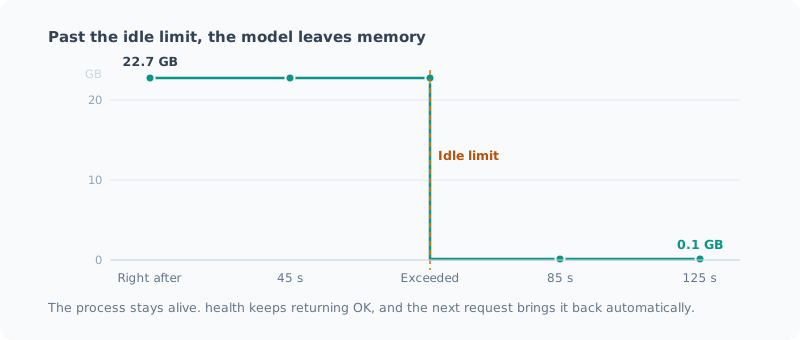
リクエスト直後 : 22.7 GB
45 秒後        : 22.7 GB
85 秒後        : 0.1 GB   ← 22.6 GB 解放
125 秒後       : 0.1 GB
health         : OK
It was freed. And the process stays alive,
with health continuing to return OK. It comes back automatically on the next request.
I had been planning to write my own “kill the process after 12 hours” task, but a single flag was all it took. And since nothing gets killed, coming back only means reloading the model.
For everyday use I set it to 12 hours (43200 seconds).
--sleep-idle-seconds 43200The lesson here boils down to “read
--helpbefore writing it yourself”. If I had started writing it, I would have built a process-watching task, worked out when to kill it, and rebuilt the 40-second restart all over again.
It Was Taking Up 48 GB
Now that it worked, I checked stopping and restarting. That’s when I found this:
PID 105720  23.95 GB  ← ポート 8080 を保持(正常)
PID  94128  23.96 GB  ← ポートを取れなかった孤児
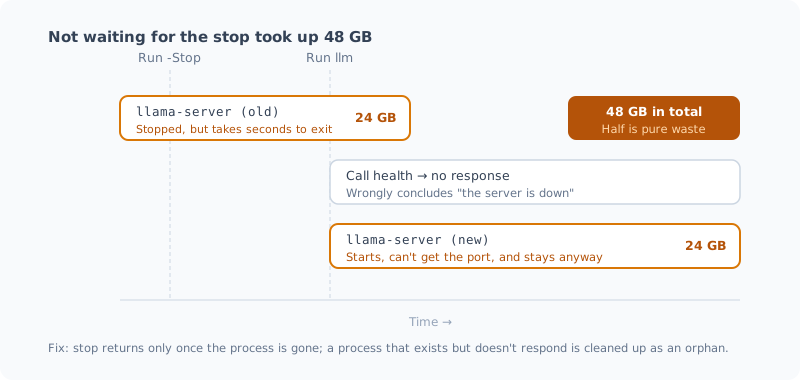
Two llama-server processes were running, 48 GB in total. Half of it was pure waste.
This was the cause:
# 直す前
$p = Get-Process llama-server -ErrorAction SilentlyContinue
if ($p) { $p | Stop-Process -Force }   # ← 投げっぱなしで即座に返る
Stop-Process doesn’t wait for the process to exit. A process holding 24 GB takes a few seconds to clean up.
If you run llm in that window:
- It calls
health→ no response, because the server is still dying - It decides “the server is down”
- It starts a second one
- The second one can’t get the port. But the model is already loaded, so it stays
The one that couldn’t get the port keeps holding 24 GB without doing any work.
llm still gets its answer from the first one (the one that’s still alive),
so it looks like it succeeded. I only noticed because I happened to look at the process list.
The Fix
On the stop side, I made it wait until the process is gone.
$procs | Stop-Process -Force
foreach ($i in 1..30) {
    Start-Sleep -Milliseconds 500
    if (-not (Get-Process llama-server -ErrorAction SilentlyContinue)) { return $true }
}
On the start side, I made it suspicious of the “process exists but doesn’t respond” state. There are two possible cases:
- It’s still starting up and loading the model → just wait
- It’s an orphan that couldn’t get the port → clean it up
You can’t tell them apart, so it first waits 2 minutes, and if there’s still no response, treats it as an orphan.
$existing = @(Get-Process llama-server -ErrorAction SilentlyContinue)
if ($existing.Count -gt 0) {
    # 起動途中かもしれないので、まず待つ
    ...
    # 2 分待って応答しないなら孤児
    [void](Stop-Server)
}
After the fix, stop returns after confirming a complete exit in 3.2 seconds,
and even running llm right after stopping leaves just one process.
“Failures that look like success” are the worst kind. No error, and the answer comes back. Memory just gets eaten quietly. The habit of looking at the process list now and then turned out to be worth it.
Typing llm from Anywhere
I put one function in my PowerShell profile.
function llm {
    $script = 'C:\Projects\local-llm\scripts\llm.ps1'
    if (-not (Test-Path $script)) {
        Write-Host "llm.ps1 が見つかりません: $script" -ForegroundColor Red
        return
    }
    & $script @args
}
@args passes the arguments through as is,
so llm -Think "..." and llm -Stop work too.
The profile location differs by environment, so check it with $PROFILE.CurrentUserAllHosts.
Mine was under OneDrive. It syncs to my other PCs as well,
but if the script isn’t on the other machine, it just says “not found” and does no harm.
Without Streaming, It Feels Different
At first, I displayed the response only after it was complete. At 20 t/s, a 300-token answer means nothing happens for 15 seconds.
Even at the same speed, that feels “slow”. The OpenAI-compatible API can stream over SSE, so I switched to that.
while (-not $reader.EndOfStream) {
    $line = $reader.ReadLine()
    if (-not $line.StartsWith('data: ')) { continue }
    $data = $line.Substring(6)
    if ($data -eq '[DONE]') { break }
    $delta = ($data | ConvertFrom-Json).choices[0].delta
    if ($delta.content) { Write-Host $delta.content -NoNewline }
}
I also made it show the measured speed at the end of each response.
[16.5 秒 / 約 17.3 tok/s]That way I notice when my environment gets slower.
Turn Thinking Off
Qwen3.6 has thinking enabled by default.
Through the OpenAI-compatible API, the thinking comes back in reasoning_content and the final answer in content.
This eats a lot of tokens.
For the question “Introduce yourself in one sentence in Japanese”,
it used 1313 characters on thinking. With max_tokens=100, thinking alone used them all up,
and it came back with an empty content.
For quick answers from the CLI, I turned it off.
{ "chat_template_kwargs": { "enable_thinking": false } }I turn it on only when I need it, with llm -Think "...".
The thinking part is shown in gray, so it doesn’t mix with the answer.
Summary
- Making it fast isn’t enough to make me use it. If the path is long, I stop using it regardless of speed
- Resident vs. lazy start is a trade-off between memory and the first wait. If you use it a few times a week, lazy start wastes less
--sleep-idle-secondstook it from 22.7 GB → 0.1 GB. I should have read--helpbefore writing my own watcher task- Stopping should wait for the exit. Return without waiting, and it starts twice and eats 48 GB. And it looks like it succeeded
- Without streaming, the same speed feels slow
Now it’s just “boot the PC and type llm”.
The effort of making it fast is finally paying off.
Next, I’ll run the three reviewers (Claude / Codex / local Qwen) on real development and record how often the local one hits. One round of results isn’t enough to judge, so I’ll collect data for a while before writing it up.
関連記事 Related Posts
thinking を切っていいのか測ったら、採点器のほうが2回壊れていた I Measured Whether Turning Off Thinking Was OK, and It Was My Grader That Broke Twice
ローカルLLMのCLIでthinkingを既定で切っていました。速度だけ見て決めた判断の裏を取るため正答率を測ったら、同率でした。ただしそこに至るまでに、自分で書いた採点スクリプトのバグを2回踏んでいます。 I had turned thinking off by default in my local LLM CLI. To back up a decision I'd made by looking only at speed, I measured accuracy, and it was the same. But on the way there, I hit bugs in the grading script I wrote myself twice.
自分が書いた1418行を3つのAIにレビューさせたら、実バグが11件出た I Had Three AIs Review 1418 Lines I Wrote, and They Found 11 Real Bugs
Claude・Codex・ローカルQwenの3枚に、自分で書いて自分で動かしていたスクリプトをレビューさせました。3件は自力では気づけないもので、1件は「レビュー結果を集計するスクリプト自体」のバグでした。一方で、3枚とも見逃した欠陥もあります。 I had three reviewers, Claude, Codex and a local Qwen, review scripts I had written and been running myself. Three were bugs I couldn't have found on my own, and one was in the very script that tallies the review results. There was also a defect all three missed.
Windows に Coreutils を入れてみた I Installed Coreutils on Windows
winget で Microsoft の GNU Coreutils を Windows にインストールし、PowerShell から cat や rm などの Unix コマンドを使えるようにする手順を紹介します。 How to install Microsoft's GNU Coreutils on Windows with winget so you can use Unix commands such as cat and rm from PowerShell.