Ryzen AI PCのローカルLLM環境を一度まっさらにする Wiping the Local LLM Setup on My Ryzen AI PC Clean
はじめに
少し前に、AMD の Ryzen AI 搭載ノートPCでもローカルLLMが実用速度で動くのか試して、 Lemonade Server と Qwen の組み合わせで環境を作りました。実際、動きました。
ただ、あれから半年近く経っています。その間に、
- モデルを試すたびにダウンロードして、消さずに置きっぱなし
- 推論バックエンドの設定が、当時の試行錯誤のまま
- すでにアンインストールしたはずのツールの設定ファイルだけが残っている
という、よくある「積み上がった状態」になりました。
新しい方法で組み直すにあたって、この上に重ねても良いことがありません。 一度まっさらにしてから作り直すことにして、今回はその掃除の回です。
このシリーズは全5回くらいを予定しています。 今回(第1回)は掃除、次回から新環境の設計と構築に入ります。
対象マシン
| 項目 | 内容 |
|---|---|
| CPU | AMD Ryzen AI 9 HX 370 (12コア / 24スレッド) |
| iGPU | AMD Radeon 890M |
| NPU | XDNA2 |
| メモリ | 96 GB |
| OS | Windows 11 Pro |
| ドライバ | AMD Software 26.8.1 |
メモリ 96 GB というのがこの構成の肝で、 ディスクリートGPUが無くても大きめのモデルをまるごとメモリに載せられます。
まず棚卸しから
消す前に、何が残っているのかを確認します。 記憶だけで消しにいくと、だいたい消し残すか、消してはいけないものを消します。
インストール済みのソフトを探す
$paths = @(
  'HKLM:\SOFTWARE\Microsoft\Windows\CurrentVersion\Uninstall\*',
  'HKLM:\SOFTWARE\WOW6432Node\Microsoft\Windows\CurrentVersion\Uninstall\*',
  'HKCU:\SOFTWARE\Microsoft\Windows\CurrentVersion\Uninstall\*'
)
Get-ItemProperty $paths -ErrorAction SilentlyContinue |
  Where-Object { $_.DisplayName -match 'lemonade|ollama|LM Studio|ROCm|Ryzen AI|llama' } |
  Select-Object DisplayName, DisplayVersion, UninstallString | Format-List
結果、残っていたのは Lemonade Server 11.5.1 だけでした。
動いているプロセスとポートを見る
Get-Process | Where-Object { $_.Name -match 'lemonade|ollama|llama|ryzenai' } |
  Select-Object Name, Id, Path
LemonadeServer.exe が常駐していました。しかも自動起動の設定付きです。
そして、ここで一つ引っかかったのがポートでした。
http://localhost:8000 を叩いても応答がありません。設定を読むと、
Get-Content "$env:USERPROFILE\.cache\lemonade\config.json" | ConvertFrom-Json |
  Select-Object port, host
port: 13305 でした。過去の記事のつもりで 8000 を叩いても繋がらないわけです。
(Invoke-RestMethod 'http://localhost:13305/api/v1/models').data | Select-Object id登録されていたモデルは 5 つ。
Gemma-4-E4B-it-GGUF
Qwen3-8B-Hybrid
Qwen3.6-35B-A3B-GGUF
Qwen3.6-35B-A3B-MTP-GGUF
Qwen3.6-35B-A3B-MTP-ThinkingCoder   ← 自分で作ったカスタム定義
容量を食っているものを探す
ここが本題です。
Get-ChildItem "$env:USERPROFILE\.cache\huggingface\hub" -Directory | ForEach-Object {
  $sz = (Get-ChildItem $_.FullName -Recurse -File -EA SilentlyContinue |
         Measure-Object Length -Sum).Sum / 1GB
  "{0,10:N2} GB  {1}" -f $sz, $_.Name
} | Sort-Object -Descending| サイズ | リポジトリ |
|---|---|
| 22.12 GB | unsloth/Qwen3.6-35B-A3B-MTP-GGUF |
| 21.66 GB | unsloth/Qwen3.6-35B-A3B-GGUF |
| 9.47 GB | unsloth/Qwen3.6-27B-MTP-GGUF |
| 8.77 GB | amd/Qwen3-8B-awq-quant-onnx-ryzenai-1.7-hybrid |
| 5.56 GB | unsloth/gemma-4-E4B-it-GGUF |
合計 67.58 GB。 35B 系の GGUF が 2 リポジトリで 43 GB あり、ほぼ重複です。 「MTP 版とそうでない版、どっちが速いのか」を比べたときのものが、 比べたきり両方残っていました。
さらに、Lemonade が自分でダウンロードした推論バックエンドが別にあります。
Get-ChildItem "$env:USERPROFILE\.cache\lemonade\bin" | ForEach-Object {
  $sz = (Get-ChildItem $_.FullName -Recurse -File -EA SilentlyContinue |
         Measure-Object Length -Sum).Sum / 1MB
  "{0,8:N0} MB  {1}" -f $sz, $_.Name
}
1079 MB ryzenai-server
156 MB llamacppアンインストーラはこれを消してくれません。 手で消す必要があります。
棚卸しの結果を整理すると、こうなりました。
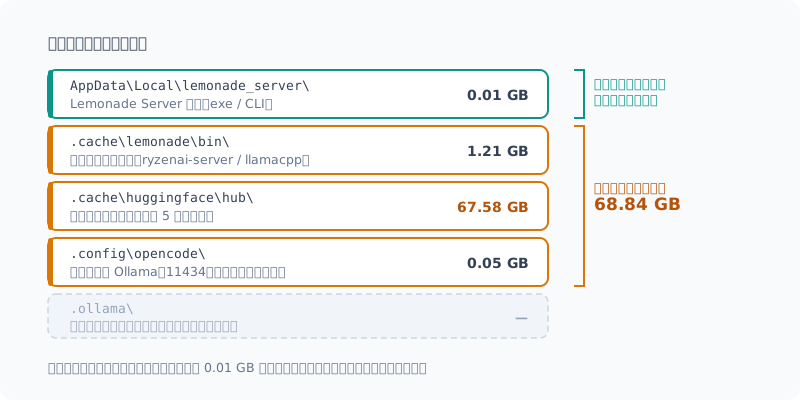
アンインストーラが面倒を見てくれるのは、いちばん上の 0.01 GB だけです。 残り 68.84 GB は自分で消すことになります。
モデルの内訳も見ておきます。
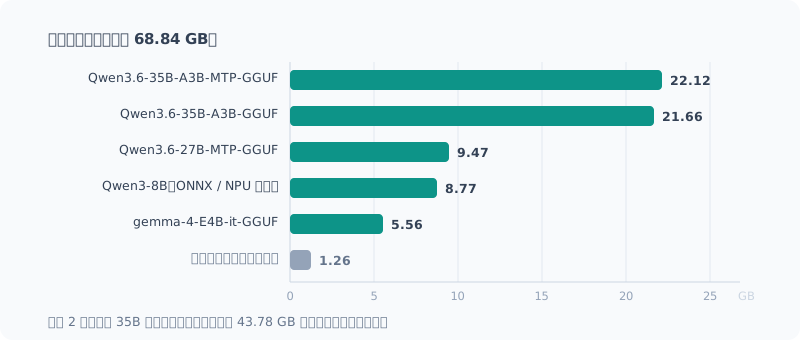
上の 2 本が効いています。どちらも同じ Qwen3.6 35B で、MTP 版とそうでない版。 合わせて 43.78 GB が実質的な重複でした。
棚卸しでわかった3つのこと
1. Ollama はすでに消えていた
前回 Ollama を入れたつもりでいましたが、痕跡が一切ありませんでした。
foreach ($d in "$env:USERPROFILE\.ollama",
               "$env:LOCALAPPDATA\Programs\Ollama",
               "$env:APPDATA\Ollama") { "{0}: {1}" -f $d, (Test-Path $d) }
Get-Command ollama -ErrorAction SilentlyContinue
全部 False、コマンドも無し。どこかの時点でアンインストール済みでした。
記憶で消しにいかなくて正解だった例です。
2. CPU 推論のままだった
config.json を読んでいて気づいたのがこれです。
"llamacpp": {
  "backend": "cpu",
  ...
}
Radeon 890M も NPU も積んでいるのに、llama.cpp を CPU バックエンドで回していました。 96 GB のメモリのおかげで 35B クラスが動いてしまっていたので、 「動いてるからいいか」で放置されていたわけです。
新環境を作る一番の動機がこれになりました。
3. 死んだ設定が残っていた
~/.config/opencode/opencode.json が、もう存在しない Ollama を指したままでした。
{
  "provider": {
    "ollama": {
      "options": { "baseURL": "http://127.0.0.1:11434/v1" }
    }
  },
  "model": "ollama/qwen3.6:27b"
}
実害は「起動しても繋がらない」だけですが、これも掃除の対象です。
掃除の手順
0. 消す前にバックアップ
自分でチューニングした設定だけは退避します。
特に user_models.json と recipe_options.json は、
サンプリングパラメータを詰めた結果なので消すと惜しいです。
$backup = "$env:USERPROFILE\Desktop\llm-backup"
New-Item -ItemType Directory -Force -Path $backup | Out-Null
Copy-Item "$env:USERPROFILE\.cache\lemonade\*.json" $backup
1. サーバを停止する
常駐したままだとファイルを掴んでいて、アンインストールに失敗します。
Get-Process LemonadeServer -ErrorAction SilentlyContinue | Stop-Process -Force2. Lemonade Server をアンインストールする
MSI なので msiexec で消せます。プロダクトコードは棚卸しで調べた
UninstallString に入っています。
Start-Process msiexec.exe -ArgumentList '/X{プロダクトコード} /quiet /norestart' -Wait「設定 > アプリ > インストールされているアプリ」からでも同じです。
3. バックエンドと設定を消す
アンインストーラが残していく 1.2 GB です。
Remove-Item "$env:USERPROFILE\.cache\lemonade" -Recurse -Force4. モデルキャッシュを消す
今回いちばん効くところです。67.6 GB。
Remove-Item "$env:USERPROFILE\.cache\huggingface" -Recurse -Force全部消すか迷いましたが、全消しにしました。理由は2つで、
- 35B の GGUF は実質重複していて、どちらを残すかを今決める意味がない
- ONNX 版は
ryzenai-1.7向け。新環境では対応バージョンが変わる可能性が高い
回線が細い環境なら、Qwen3.6-35B-A3B-MTP-GGUF(22 GB)だけ残す手はあります。
5. 自動起動の残骸を消す
$lnk = "$env:APPDATA\Microsoft\Windows\Start Menu\Programs\Startup\Lemonade Server.lnk"
if (Test-Path $lnk) { Remove-Item $lnk -Force }……と身構えていたのですが、これは不要でした。
手順2のアンインストーラがショートカットまで消してくれていて、
確認した時点ですでに False を返しました。
バックエンドの 1.2 GB は残すのにショートカットは消す、というのは なかなか読めない挙動です。結局のところ、 アンインストーラが何を消して何を残すかは実際に確認するしかないということでした。
6. 死んだ設定を消す
Remove-Item "$env:USERPROFILE\.config\opencode" -Recurse -Force7. 確認する
foreach ($d in "$env:USERPROFILE\.cache\lemonade",
               "$env:USERPROFILE\.cache\huggingface",
               "$env:LOCALAPPDATA\lemonade_server",
               "$env:USERPROFILE\.ollama",
               "$env:USERPROFILE\.config\opencode") {
  "{0,-60} {1}" -f $d, (Test-Path $d)
}
Get-Command lemonade, ollama -ErrorAction SilentlyContinue
実際の結果はこうなりました。
C:\Users\<user>\.cache\lemonade                                False
C:\Users\<user>\.cache\huggingface                             False
C:\Users\<user>\AppData\Local\lemonade_server                  False
C:\Users\<user>\.ollama                                        False
C:\Users\<user>\.config\opencode                               False
lemonade / ollama / llama-server のコマンドも返らず、
13305 / 11434 / 8000 のどのポートも待ち受けなし。関連プロセスもゼロ。
掃除としては完了です。
空き容量が測れなかった話
きれいに終わったので、最後に「これだけ空きました」と書くつもりでした。 ところが数字を見ると、
掃除前: 1277.4 GB 空き
掃除後: 1125.9 GB 空き
約 150 GB 減っています。 69 GB 消したはずなのに、逆方向です。
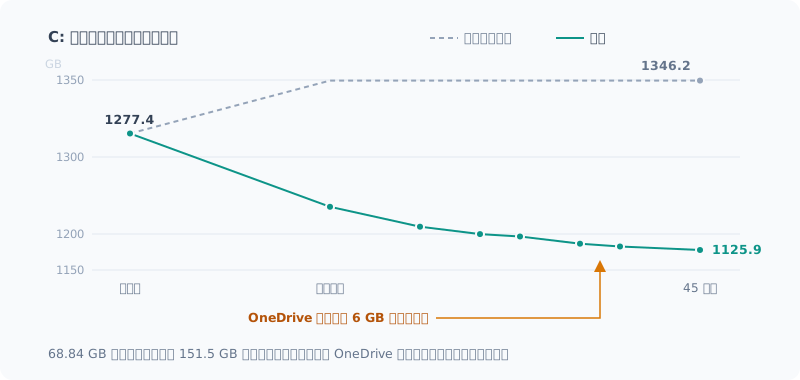
フォルダは間違いなく全部消えている。ではこの数字は何なのか、と調べました。
まず 10 秒おきに空き容量を測ると、きれいに減り続けていました。
11:02:57  空き 1,134.2 GB
11:03:09  空き 1,133.2 GB
11:03:21  空き 1,131.9 GB
11:03:34  空き 1,130.5 GB
毎分およそ 6 GB。 掃除とは無関係に、何かが書き込み続けています。
候補を順に潰していきます。
- ごみ箱 →
0.09 GB。Remove-Itemはごみ箱を経由しないので当然 - Windows Update のステージング(
SoftwareDistribution\Download)→0 GB - Docker の
docker_data.vhdx→ 45.54 GB あるが、測り直しても増えていない
残ったのはプロセスです。書き込みバイト数の差分を取ります。
$s1 = Get-CimInstance Win32_PerfRawData_PerfProc_Process
Start-Sleep -Seconds 15
$s2 = Get-CimInstance Win32_PerfRawData_PerfProc_Process
# IOWriteBytesPersec の差分を取って上位を見る
犯人は explorer.exe、15 秒で約 900 MB。
OneDrive の同期エンジンです。裏で延々とファイルを書き戻していました。
つまり、掃除で解放した 69 GB は、それを上回る OneDrive の書き込みに埋もれた というのが答えでした。before / after の数字としては出せません。
容量の増減を記事の数字にするつもりなら、 OneDrive・Docker・Windows Update を止めてから測るべきでした。 削除したフォルダのサイズを事前に控えておいたのは正解で、 結局「何 GB 消したか」はそちらの積み上げ(67.58 + 1.21 + 0.05 GB)で示すしかありません。
消してはいけないもの
掃除のときに巻き込みがちなので、明示的に残すと決めたものです。
| 残すもの | 理由 |
|---|---|
| AMD Software 26.8.1 | GPU ドライバ本体。NPU ドライバもここに含まれる |
| NPU Compute Accelerator Device | デバイスそのもの。デバイスマネージャーで無効化しない |
| Docker Desktop | 別用途で使っている |
| Microsoft Store 版 Python | ローカルLLM用に入れたものではない |
特に AMD Software は、 「ROCm まわりを入れ直すついでに」と消しにかかると画面ごと巻き込みます。 ドライバは新環境の前提として残す、で問題ありません。
まとめ
今回わかったことを整理すると、
- 棚卸しを先にやる。 Ollama はすでに消えていたし、ポートも記憶と違っていた
- アンインストーラが何を残すかは読めない。 バックエンド 1.2 GB は残したのに、スタートアップのショートカットは消していた
- 設定ファイルは消す前に読む。 CPU 推論のままだったという、 次の環境を作る一番の理由がここから出てきた
- 消す前にサイズを控えておく。 空き容量の before / after は OneDrive の同期に埋もれて使い物にならなかった
- 削除したのは合計 68.8 GB(モデル 67.58 + バックエンド 1.21 + 設定 0.05)
次回は、この空っぽになった状態から どの推論バックエンドとモデルを選ぶかを検討するところから始めます。 iGPU(Vulkan / ROCm)と NPU をどう使い分けるのか、 そもそも 96 GB のメモリでは CPU 推論のままのほうが速いのか、 そのあたりを実際に測りながら決めていきます。
Introduction
A while ago, I tested whether a local LLM could run at a usable speed on an AMD Ryzen AI laptop, and built a setup with Lemonade Server and Qwen. And it did work.
But that was almost half a year ago. In the meantime, I ended up in the usual “piled-up” state:
- I downloaded models every time I tried one, and never deleted them
- The inference backend settings were still whatever I’d landed on through trial and error back then
- Config files were left behind for tools I thought I had already uninstalled
Now that I’m rebuilding with a newer approach, there’s nothing to gain by stacking it on top of all this. I decided to wipe everything once and rebuild from scratch, and this post covers that cleanup.
I’m planning about five posts in this series. This one (part 1) is the cleanup; from the next one I’ll move on to designing and building the new setup.
The Machine
| Item | Details |
|---|---|
| CPU | AMD Ryzen AI 9 HX 370 (12 cores / 24 threads) |
| iGPU | AMD Radeon 890M |
| NPU | XDNA2 |
| Memory | 96 GB |
| OS | Windows 11 Pro |
| Driver | AMD Software 26.8.1 |
The 96 GB of memory is the key to this configuration: even without a discrete GPU, you can fit fairly large models entirely in memory.
Start with an Inventory
Before deleting anything, I checked what’s actually left. If you go deleting from memory alone, you usually either miss something or delete something you shouldn’t.
Finding Installed Software
$paths = @(
  'HKLM:\SOFTWARE\Microsoft\Windows\CurrentVersion\Uninstall\*',
  'HKLM:\SOFTWARE\WOW6432Node\Microsoft\Windows\CurrentVersion\Uninstall\*',
  'HKCU:\SOFTWARE\Microsoft\Windows\CurrentVersion\Uninstall\*'
)
Get-ItemProperty $paths -ErrorAction SilentlyContinue |
  Where-Object { $_.DisplayName -match 'lemonade|ollama|LM Studio|ROCm|Ryzen AI|llama' } |
  Select-Object DisplayName, DisplayVersion, UninstallString | Format-List
The only thing left was Lemonade Server 11.5.1.
Checking Running Processes and Ports
Get-Process | Where-Object { $_.Name -match 'lemonade|ollama|llama|ryzenai' } |
  Select-Object Name, Id, Path
LemonadeServer.exe was running in the background, and it was even set to start automatically.
Then one thing tripped me up: the port.
Requests to http://localhost:8000 got no response. Reading the config:
Get-Content "$env:USERPROFILE\.cache\lemonade\config.json" | ConvertFrom-Json |
  Select-Object port, host
It was port: 13305. No wonder hitting 8000, as in my earlier post, didn’t connect.
(Invoke-RestMethod 'http://localhost:13305/api/v1/models').data | Select-Object idFive models were registered.
Gemma-4-E4B-it-GGUF
Qwen3-8B-Hybrid
Qwen3.6-35B-A3B-GGUF
Qwen3.6-35B-A3B-MTP-GGUF
Qwen3.6-35B-A3B-MTP-ThinkingCoder   ← 自分で作ったカスタム定義
(The last one is a custom definition I made myself.)
Finding What Eats Up the Space
This is the main part.
Get-ChildItem "$env:USERPROFILE\.cache\huggingface\hub" -Directory | ForEach-Object {
  $sz = (Get-ChildItem $_.FullName -Recurse -File -EA SilentlyContinue |
         Measure-Object Length -Sum).Sum / 1GB
  "{0,10:N2} GB  {1}" -f $sz, $_.Name
} | Sort-Object -Descending| Size | Repository |
|---|---|
| 22.12 GB | unsloth/Qwen3.6-35B-A3B-MTP-GGUF |
| 21.66 GB | unsloth/Qwen3.6-35B-A3B-GGUF |
| 9.47 GB | unsloth/Qwen3.6-27B-MTP-GGUF |
| 8.77 GB | amd/Qwen3-8B-awq-quant-onnx-ryzenai-1.7-hybrid |
| 5.56 GB | unsloth/gemma-4-E4B-it-GGUF |
67.58 GB in total. The 35B GGUFs take up 43 GB across two repositories, and they’re nearly duplicates. They were from when I compared “which is faster, the MTP version or the regular one?”, and after the comparison I just left both.
On top of that, there are the inference backends Lemonade downloaded by itself.
Get-ChildItem "$env:USERPROFILE\.cache\lemonade\bin" | ForEach-Object {
  $sz = (Get-ChildItem $_.FullName -Recurse -File -EA SilentlyContinue |
         Measure-Object Length -Sum).Sum / 1MB
  "{0,8:N0} MB  {1}" -f $sz, $_.Name
}
1079 MB ryzenai-server
156 MB llamacppThe uninstaller doesn’t remove these. You have to delete them by hand.
Putting the inventory together, here’s what I found.
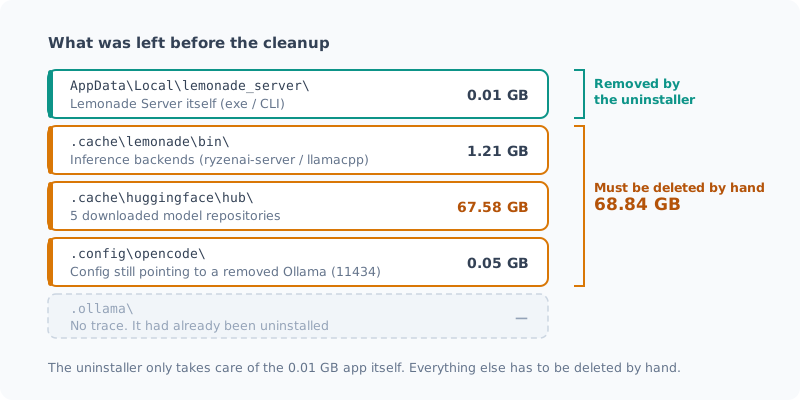
The uninstaller takes care of only the 0.01 GB at the top. The remaining 68.84 GB is up to me.
Let’s also look at the breakdown of the models.
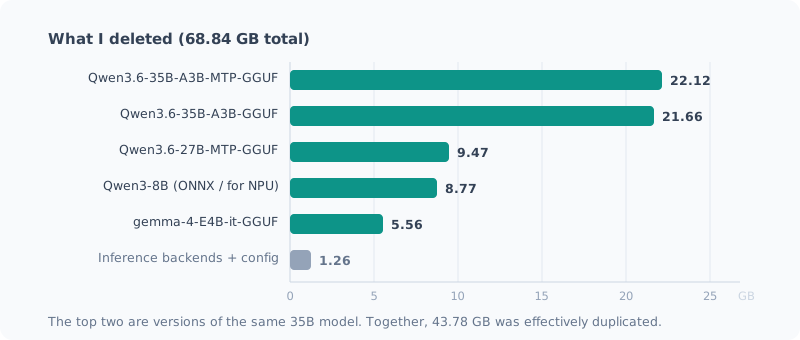
The top two are what really count. Both are the same Qwen3.6 35B, one MTP version and one regular. Together, 43.78 GB was effectively duplicated.
Three Things the Inventory Revealed
1. Ollama Was Already Gone
I thought I had installed Ollama last time, but there wasn’t a trace of it.
foreach ($d in "$env:USERPROFILE\.ollama",
               "$env:LOCALAPPDATA\Programs\Ollama",
               "$env:APPDATA\Ollama") { "{0}: {1}" -f $d, (Test-Path $d) }
Get-Command ollama -ErrorAction SilentlyContinue
All False, and no command either. I had uninstalled it at some point.
A good example of why not deleting from memory was the right call.
2. It Was Still Running Inference on the CPU
I noticed this while reading config.json.
"llamacpp": {
  "backend": "cpu",
  ...
}
Despite having a Radeon 890M and an NPU, I was running llama.cpp with the CPU backend. Thanks to the 96 GB of memory, 35B-class models ran anyway, so it had been left alone with a “well, it works” attitude.
This became the main motivation for building the new setup.
3. Dead Config Was Left Behind
~/.config/opencode/opencode.json was still pointing to an Ollama that no longer existed.
{
  "provider": {
    "ollama": {
      "options": { "baseURL": "http://127.0.0.1:11434/v1" }
    }
  },
  "model": "ollama/qwen3.6:27b"
}
The only real harm is “it starts but can’t connect,” but this is on the cleanup list too.
Cleanup Steps
0. Back Up Before Deleting
I set aside only the settings I had tuned myself.
In particular, user_models.json and recipe_options.json hold the sampling parameters I had dialed in,
so it would be a shame to lose them.
$backup = "$env:USERPROFILE\Desktop\llm-backup"
New-Item -ItemType Directory -Force -Path $backup | Out-Null
Copy-Item "$env:USERPROFILE\.cache\lemonade\*.json" $backup
1. Stop the Server
If it keeps running, it holds files open and the uninstall fails.
Get-Process LemonadeServer -ErrorAction SilentlyContinue | Stop-Process -Force2. Uninstall Lemonade Server
It’s an MSI, so msiexec can remove it. The product code is in the
UninstallString I looked up during the inventory.
Start-Process msiexec.exe -ArgumentList '/X{プロダクトコード} /quiet /norestart' -Wait(Replace {プロダクトコード} with the product code.) Going through Settings > Apps > Installed apps does the same thing.
3. Delete the Backends and Config
This is the 1.2 GB the uninstaller leaves behind.
Remove-Item "$env:USERPROFILE\.cache\lemonade" -Recurse -Force4. Delete the Model Cache
This is the step that makes the biggest difference. 67.6 GB.
Remove-Item "$env:USERPROFILE\.cache\huggingface" -Recurse -ForceI hesitated over whether to delete everything, but I wiped it all. For two reasons:
- The 35B GGUFs are effectively duplicates, so there’s no point deciding now which one to keep
- The ONNX version targets
ryzenai-1.7, and the supported version is likely to change in the new setup
If your connection is slow, you could keep just Qwen3.6-35B-A3B-MTP-GGUF (22 GB).
5. Remove Leftover Auto-Start Entries
$lnk = "$env:APPDATA\Microsoft\Windows\Start Menu\Programs\Startup\Lemonade Server.lnk"
if (Test-Path $lnk) { Remove-Item $lnk -Force }
…or so I braced myself, but this turned out to be unnecessary.
The uninstaller in step 2 had already removed the shortcut,
and when I checked, it already returned False.
Leaving the 1.2 GB of backends but deleting the shortcut is pretty hard-to-predict behavior. In the end, the only way to know what an uninstaller removes and what it leaves is to actually check.
6. Delete the Dead Config
Remove-Item "$env:USERPROFILE\.config\opencode" -Recurse -Force7. Verify
foreach ($d in "$env:USERPROFILE\.cache\lemonade",
               "$env:USERPROFILE\.cache\huggingface",
               "$env:LOCALAPPDATA\lemonade_server",
               "$env:USERPROFILE\.ollama",
               "$env:USERPROFILE\.config\opencode") {
  "{0,-60} {1}" -f $d, (Test-Path $d)
}
Get-Command lemonade, ollama -ErrorAction SilentlyContinue
Here’s the actual result.
C:\Users\<user>\.cache\lemonade                                False
C:\Users\<user>\.cache\huggingface                             False
C:\Users\<user>\AppData\Local\lemonade_server                  False
C:\Users\<user>\.ollama                                        False
C:\Users\<user>\.config\opencode                               False
The lemonade / ollama / llama-server commands returned nothing,
and none of the ports 13305 / 11434 / 8000 were listening. Zero related processes, too.
As far as cleanup goes, it’s done.
I Couldn’t Measure the Freed Space
Since it all went cleanly, I planned to finish with “this is how much space I freed.” But when I looked at the numbers:
掃除前: 1277.4 GB 空き
掃除後: 1125.9 GB 空き
(Before the cleanup: 1277.4 GB free; after: 1125.9 GB free.)
It had dropped by about 150 GB. I should have deleted 69 GB, but it went the other way.
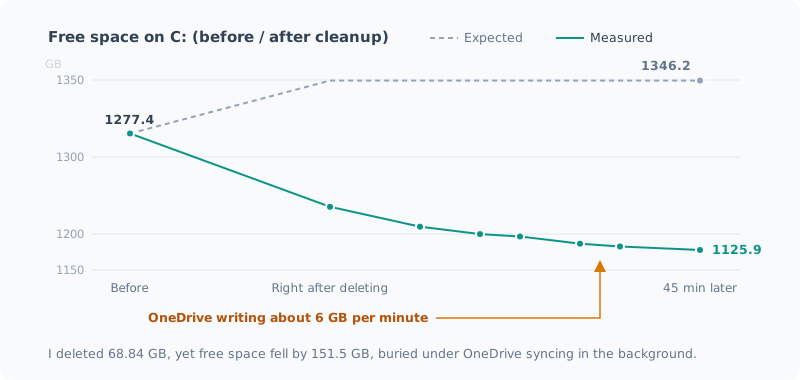
The folders were definitely all gone. So what was this number? I looked into it.
First I measured the free space every 10 seconds, and it kept going down steadily.
11:02:57  空き 1,134.2 GB
11:03:09  空き 1,133.2 GB
11:03:21  空き 1,131.9 GB
11:03:34  空き 1,130.5 GB
About 6 GB per minute. Something unrelated to the cleanup kept writing.
I ruled out the candidates one by one.
- Recycle Bin →
0.09 GB. Naturally, sinceRemove-Itemdoesn’t go through the Recycle Bin - Windows Update staging (
SoftwareDistribution\Download) →0 GB - Docker’s
docker_data.vhdx→ 45.54 GB, but it hadn’t grown when I measured again
That left processes. I took the difference in bytes written.
$s1 = Get-CimInstance Win32_PerfRawData_PerfProc_Process
Start-Sleep -Seconds 15
$s2 = Get-CimInstance Win32_PerfRawData_PerfProc_Process
# IOWriteBytesPersec の差分を取って上位を見る
(The comment means: take the difference in IOWriteBytesPersec and look at the top entries.)
The culprit was explorer.exe, about 900 MB in 15 seconds.
It was OneDrive’s sync engine, endlessly writing files back in the background.
So the answer was that the 69 GB the cleanup freed was buried under even more OneDrive writes. I can’t show it as a before / after number.
If I wanted the change in disk space to be a number in a post, I should have stopped OneDrive, Docker and Windows Update before measuring. Noting down the sizes of the folders before deleting them was the right move: in the end, the only way to show “how many GB I deleted” is to add those up (67.58 + 1.21 + 0.05 GB).
What Not to Delete
These are things that easily get caught up in a cleanup, so I explicitly decided to keep them.
| Keep | Reason |
|---|---|
| AMD Software 26.8.1 | The GPU driver itself. The NPU driver is included here too |
| NPU Compute Accelerator Device | The device itself. Don’t disable it in Device Manager |
| Docker Desktop | I use it for other things |
| Microsoft Store Python | Not something I installed for local LLMs |
AMD Software in particular: if you go to remove it “while I’m at it, reinstalling the ROCm bits,” you take your display down with it. Keep the driver as a prerequisite for the new setup, and you’re fine.
Summary
Here’s what I learned this time:
- Take inventory first. Ollama was already gone, and the port wasn’t what I remembered
- You can’t predict what an uninstaller leaves behind. It left 1.2 GB of backends but removed the startup shortcut
- Read config files before deleting them. That’s where I found I was still on CPU inference, the main reason for building the next setup
- Note the sizes before deleting. The before / after free space was buried under OneDrive syncing and was useless
- I deleted 68.8 GB in total (models 67.58 + backends 1.21 + config 0.05)
Next time, starting from this empty state, I’ll begin by considering which inference backend and model to choose. How should I split work between the iGPU (Vulkan / ROCm) and the NPU? And with 96 GB of memory, is staying on CPU inference actually faster? I’ll decide those while actually measuring.
関連記事 Related Posts
Ryzen AI PCのローカルLLMを7倍速くした話(llama.cpp + Vulkan + Qwen) How I Made the Local LLM on My Ryzen AI PC 7 Times Faster (llama.cpp + Vulkan + Qwen)
まっさらにしたRyzen AI 9 HX 370機に、llama.cppとVulkanでローカルLLM環境を作り直しました。CPU推論から約7倍。最新モデルを選んで失敗した話と、ファイルが大きいほうが速いという実測結果をまとめます。 I rebuilt the local LLM setup on my freshly wiped Ryzen AI 9 HX 370 machine with llama.cpp and Vulkan: about 7 times faster than CPU inference. Here's how picking the newest model backfired, and measurements showing the bigger file was faster.
Ryzen AI の NPU を使わなかった理由 Why I Didn't Use the Ryzen AI NPU
50 TOPS の NPU を積んだ機体でローカルLLMを動かしてきましたが、一度も NPU を使っていません。使えるのか調べたら、動く保証がなく、動いても iGPU より遅く、最大の利点が自分の使い方では効かないと分かりました。インストーラを落としたところで止めた記録です。 I've been running local LLMs on a machine with a 50 TOPS NPU, but I've never used the NPU. When I looked into whether I could, I found there's no guarantee it runs, it's slower than the iGPU even if it does, and its biggest advantage doesn't apply to how I use it. A record of stopping right after downloading the installer.
ローカルLLMにメモリは何GB必要か: 96GB積んだミニPCで実測した How Much Memory Does a Local LLM Need? Measured on a Mini PC with 96GB
Ryzen AI ミニPCに96GBのメモリを積んでローカルLLMを動かし、実際に何GB使っているかを測りました。35BのMoEモデルで24GiB、コンテキストを上限の256Kまで伸ばしても28GiB程度です。32GB・64GB・96GBでそれぞれ何ができそうかを、実測と推定を分けて整理します。 I ran a local LLM on a Ryzen AI mini PC with 96GB of memory and measured how many GB it actually uses. A 35B MoE model takes 24GiB, and even with the context stretched to its 256K limit, it stays around 28GiB. I sort out what 32GB, 64GB and 96GB are each likely to handle, keeping measurements and estimates apart.