WSLからホストのローカルLLMを使う方法を調べて、やめた I Looked into Using the Host's Local LLM from WSL, and Decided Not To
はじめに
ここまでの記事で、Windows 機に ローカルLLM環境を作り、 ターミナルから常用できるようにし、 dev-orchestra のレビュアーに組み込みました。
次に思いつくのは当然これです。WSL 側の開発でも、このレビュアーを使いたい。
結論から言うと、やめました。できないからではなく、 引き合わないと判断したからです。
やらなかった話なので手順書ではありません。 同じことを考えた人が、同じ調査をやり直さずに済むように書いています。
現状の確認
まず事実を測りました。
llama-server の待受 : 127.0.0.1:8080   ← ループバックのみ
WSL (kizuna4) の IP : 172.22.59.21
デフォルトゲートウェイ: 172.22.48.1
.wslconfig           : なし(= 既定の NAT モード)
この時点で WSL からは届きません。 127.0.0.1 に束縛されているので、
別ホスト扱いの WSL からの接続は受け付けません。
もう一点。NAT モードなので、WSL から見たホストは localhost ではなく
ゲートウェイの 172.22.48.1 です。しかもこの IP は WSL を再起動すると変わります。
ホストのコマンドは呼べる
「WSL から Windows のコマンドは実行できるのか」を先に確かめました。できます。
$ powershell.exe -NoProfile -Command 'Write-Output interop-ok'
interop-ok

$ ls /mnt/c/Projects/local-llm/bin/
local-llm.cmd  local-llm.py
WSL interop が有効で、/mnt/c 越しにホストのファイルも見えています。
つまり経路は 2 つあることになります。
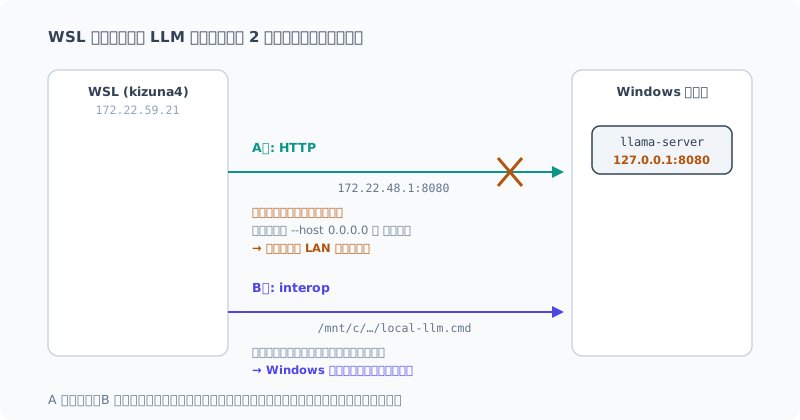
A案: HTTP で繋ぐ
--host 0.0.0.0 で待ち受けさせ、WSL から HTTP で叩きます。
WSL 側に既存の CLI を置けば、アダプタはほぼそのまま動きます。
技術的にはこれが素直です。WSL から見ればただのリモート API で、 文字コードもパスも関係しません。速度面でも有利です。
問題は 2 つありました。
1 つ目は IP が変わること。 ゲートウェイの IP は WSL 再起動で変わるので、
毎回解決する仕組みが要ります。.wslconfig でミラーモードにすれば
localhost で届くようになりますが、今度はネットワーク構成全体を変えることになります。
LLM を使いたいだけで、WSL のネットワークモードを変えるのは釣り合いません。
2 つ目が本命で、0.0.0.0 の意味です。 これは同一 LAN 上の誰からでも
叩ける状態です。llama-server に認証はありません。
自宅の固定 LAN だけで使うなら許容範囲でしょう。 ただしこの機体はミニPCとはいえ持ち出す可能性があります。 カフェや客先の Wi-Fi に繋いだ瞬間、同じネットワークにいる全員に 無認証の LLM エンドポイントを開くことになります。
「持ち出すときだけ止める」運用は、忘れたときに気づけないのが怖いところです。 静かに開いているだけで、エラーも何も出ません。
B案: interop でホストのコマンドを呼ぶ
WSL 側のアダプタが /mnt/c/Projects/local-llm/bin/local-llm.cmd を直接起動します。
ネットワーク設定は一切不要で、ホストは 127.0.0.1 のまま。外に開きません。
安全性の問題は消えます。が、別の問題が来ます。
この一連の作業で、Windows 境界をまたぐたびに想定外を踏んできました。
| 踏んだ罠 | 内容 |
|---|---|
.cmd の文字コード | REM に日本語を書いたら、cmd.exe が壊れたバイト列をコマンドとして解釈した |
| Store 版 Python | %APPDATA% のパス文字列は同じなのに実際の読み書き先が違う。同じファイルが 0 バイトと 705 バイトに見えた |
| パイプ時の cp932 | stdin/stdout がパイプだと UTF-8 にならず、日本語が壊れる(レビューで指摘されて修正) |
B案は、この境界に 19,000 トークンの差分を stdin で流すという話です。 3 回連続で足をすくわれた場所に、いちばん大きな荷物を通すことになります。
動かないとは言いません。ただ、動かないときの原因究明が高くつくのは目に見えています。 しかも失敗の出方が毎回「静かに壊れる」でした。
見送った理由
整理するとこうなります。
| 差し出すもの | ||
|---|---|---|
| A案 | 安全性 | 持ち出し先で無認証のまま開く |
| B案 | 信頼性 | 既に 3 回踏んだ境界に、最大の荷物を通す |
そして、得られるものを見直しました。
- ローカル LLM のレビュアーとしての打率は、直近の実測で 6 件中 1 件
- 残り 5 件は却下で、うち複数は「推測を欠陥として提起する」類
- WSL 側には既に Claude と Codex のレビュアーが普通に使える
つまり、リスクを負って繋ぐ先が、まだ 3 枚目の補助でしかないわけです。 打率が商用モデルと肩を並べているなら話は別ですが、現状はそうではありません。
「できるからやる」と「やる価値があるからやる」は違う、というだけの話でした。
やるとしたらの条件
将来やるなら、どちらかが変わったときだと思っています。
A案が通る条件 — 持ち出さない据え置き機にする、 あるいは llama-server の手前に認証付きのリバースプロキシを置く。 後者は構成が一段増えるので、それに見合う頻度で使うようになってからです。
B案が通る条件 — ローカル LLM の打率が上がって、 境界の面倒を引き受ける価値が出てくる。
どちらも「今はまだ」であって、「永久にない」ではありません。
まとめ
- WSL から Windows ホストのコマンドは実行できる(interop は動く)
- ホストの LLM に届く経路は HTTP と interop の 2 つ。どちらも実現可能
- ただし A は認証なしで LAN に開く、B は境界をまたぐ不安定さを引き受ける
- 得られるのは「打率 1/6 の 3 枚目のレビュアー」。釣り合わないので見送った
調べた結果が「やらない」でも、調べた価値はありました。 やらない理由が言語化できていれば、条件が変わったときに判断し直せます。 なんとなく手を出さなかった場合、半年後にまた同じところから調べ直すことになります。
次は、3 枚レビュー体制を実際の開発で回し続けて、 ローカル分の打率がどう動くかを見ていきます。 この記事の判断も、その数字次第で変わります。
Introduction
In the posts so far, on a Windows machine I set up a local LLM environment, made it usable every day from the terminal, and added it as a dev-orchestra reviewer.
The obvious next thought is this: I want to use this reviewer for development on the WSL side, too.
The short answer: I decided not to. Not because it can’t be done, but because I judged it wasn’t worth it.
This is about something I didn’t do, so it’s not a how-to. I’m writing it so that anyone with the same idea doesn’t have to redo the same investigation.
Checking the Current State
First, I measured the facts.
llama-server の待受 : 127.0.0.1:8080   ← ループバックのみ
WSL (kizuna4) の IP : 172.22.59.21
デフォルトゲートウェイ: 172.22.48.1
.wslconfig           : なし(= 既定の NAT モード)
At this point, WSL can’t reach it. It’s bound to 127.0.0.1,
so it doesn’t accept connections from WSL, which counts as a separate host.
One more thing. Since it’s in NAT mode, from WSL the host isn’t localhost
but the gateway, 172.22.48.1. And this IP changes whenever WSL restarts.
Host Commands Can Be Called
I first checked “can WSL run Windows commands?” It can.
$ powershell.exe -NoProfile -Command 'Write-Output interop-ok'
interop-ok

$ ls /mnt/c/Projects/local-llm/bin/
local-llm.cmd  local-llm.py
WSL interop is enabled, and the host’s files are visible through /mnt/c.
That means there are two routes.
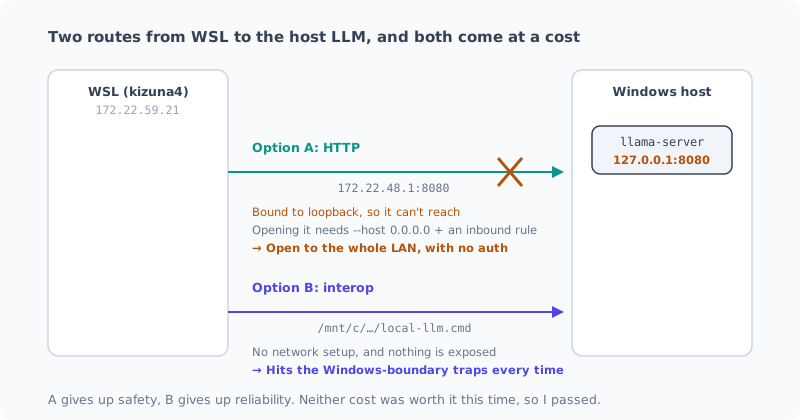
Option A: Connect over HTTP
Have it listen with --host 0.0.0.0, and call it over HTTP from WSL.
Put the existing CLI on the WSL side, and the adapter works almost as is.
Technically, this is the straightforward one. From WSL it’s just a remote API, with no character encoding or path issues. It’s better for speed, too.
There were two problems.
The first is that the IP changes. The gateway IP changes when WSL restarts,
so you need something to resolve it every time. Switching to mirrored mode in .wslconfig
makes it reachable at localhost, but then you’re changing the entire network setup.
Changing WSL’s network mode just to use an LLM isn’t a fair trade.
The second is the real one: what 0.0.0.0 means. It means anyone on the same LAN
can call it. llama-server has no authentication.
If I only used it on my fixed home LAN, it would probably be acceptable. But even though it’s a mini PC, I might take this machine out. The moment it connects to Wi-Fi at a café or a client’s office, I’d be opening an unauthenticated LLM endpoint to everyone on that network.
The scary part about “just stop it when I take it out” is that if I forget, I won’t notice. It just sits there open quietly, with no errors or anything.
Option B: Call the Host Command through interop
The adapter on the WSL side launches /mnt/c/Projects/local-llm/bin/local-llm.cmd directly.
No network setup at all, and the host stays on 127.0.0.1. Nothing is exposed.
The safety problem goes away. But a different problem comes in.
Throughout this work, every time I crossed the Windows boundary, I ran into something unexpected.
| Trap I hit | What happened |
|---|---|
.cmd character encoding | I wrote Japanese in a REM line, and cmd.exe interpreted the mangled bytes as a command |
| Store Python | For %APPDATA%, the path string was the same, but reads and writes actually went somewhere else. The same file looked like 0 bytes and 705 bytes |
| cp932 when piped | When stdin/stdout are pipes, they aren’t UTF-8 and Japanese text breaks (flagged in a review and fixed) |
Option B means piping a 19,000-token diff across this boundary on stdin. I’d be sending the biggest load through the very place that tripped me up three times in a row.
I’m not saying it won’t work. But it’s obvious that finding the cause when it doesn’t work will be expensive. And every failure so far had been the “breaks quietly” kind.
Why I Passed
Here’s how it sorts out:
| What you give up | ||
|---|---|---|
| Option A | Safety | Left open without authentication wherever I take it |
| Option B | Reliability | The biggest load goes through a boundary I’ve already tripped on three times |
Then I looked again at what I’d get.
- The local LLM’s hit rate as a reviewer, in my latest measurement, was 1 out of 6
- The other 5 were rejected, and several were the “raises a guess as a defect” kind
- On the WSL side, the Claude and Codex reviewers already work fine
In other words, what I’d be taking the risk to connect is still just a supporting third reviewer. If its hit rate were on par with the commercial models, it would be a different story, but right now it isn’t.
It just came down to this: “doing it because I can” and “doing it because it’s worth it” are different things.
When I Would Do It
If I do it in the future, I think it’ll be when one of these changes.
When option A would work — if this becomes a stationary machine that never leaves the house, or if I put a reverse proxy with authentication in front of llama-server. The latter adds another layer to the setup, so only once I’m using it often enough to justify that.
When option B would work — if the local LLM’s hit rate goes up and it becomes worth taking on the boundary hassle.
Both are “not yet”, not “never”.
Summary
- Windows host commands can be run from WSL (interop works)
- There are two routes, HTTP and interop, to the host LLM. Both are feasible
- But A opens it to the LAN with no authentication, and B takes on the instability of crossing the boundary
- What you get is “a third reviewer with a 1/6 hit rate”. It isn’t worth it, so I passed
Even though the result of the investigation was “don’t do it”, it was worth investigating. If you’ve put the reasons for not doing it into words, you can decide again when conditions change. If you just vaguely never got around to it, six months later you’ll be researching from the same starting point again.
Next, I’ll keep running the three-reviewer setup on real development and watch how the local one’s hit rate moves. The decision in this post could change depending on those numbers, too.
関連記事 Related Posts
機密コードをクラウドに出さずにAIでレビューする(ローカルLLM × dev-orchestra) Reviewing Confidential Code with AI Without Sending It to the Cloud (Local LLM × dev-orchestra)
社外に出せないコードを、クラウドのAIに送らずにレビューする方法をまとめました。ローカルLLMをdev-orchestraのレビュアーに登録し、機密のものはローカルだけで、公開してよいものはクラウドのAIと併用します。ローカルLLMのレビューの実力と、呼び出し方ひとつでコードが外に出てしまう落とし穴も書きます。 How I review code that can't leave the company without sending it to a cloud AI. I register a local LLM as a dev-orchestra reviewer, use only the local model for confidential code, and combine it with cloud AI for code that can be shared. I also cover how good the local LLM's reviews really are, and the pitfall where a single choice of how you invoke it sends your code out anyway.
Ryzen AI PCのローカルLLMを7倍速くした話(llama.cpp + Vulkan + Qwen) How I Made the Local LLM on My Ryzen AI PC 7 Times Faster (llama.cpp + Vulkan + Qwen)
まっさらにしたRyzen AI 9 HX 370機に、llama.cppとVulkanでローカルLLM環境を作り直しました。CPU推論から約7倍。最新モデルを選んで失敗した話と、ファイルが大きいほうが速いという実測結果をまとめます。 I rebuilt the local LLM setup on my freshly wiped Ryzen AI 9 HX 370 machine with llama.cpp and Vulkan: about 7 times faster than CPU inference. Here's how picking the newest model backfired, and measurements showing the bigger file was faster.
Ryzen AI PCのローカルLLM環境を一度まっさらにする Wiping the Local LLM Setup on My Ryzen AI PC Clean
AMD Ryzen AI 9 HX 370搭載機に積み上げたローカルLLM環境を、最新の方法で組み直すために一度全部消します。何が残っているかの棚卸しから、削除の手順、消してはいけないものまでをまとめました。 To rebuild the local LLM setup I had piled up on my AMD Ryzen AI 9 HX 370 machine with the latest approach, I'm deleting it all first. I cover taking inventory of what's left, the removal steps, and what you shouldn't delete.