技術ブログの図をSVGで作る仕組みを整えた Setting Up a System for Drawing My Tech Blog's Figures in SVG
はじめに
ローカルLLMの連載を書くうちに、図が 16 枚たまりました。
最初は毎回その場で作っていたのですが、同じ迷いを繰り返すので ルールとして書き出すことにしました。配色をどうするか、 文字を何 px にするか、そもそも図を入れるべきか。
この記事は、そのルールと、固めるまでに踏んだ失敗の記録です。
なぜ SVG なのか
図はすべて手書きの SVG です。ツールは使っていません。
- テキストなので差分が読める。 数値を1つ直したとき、何が変わったか git で分かる
- 記事と一緒にバージョン管理できる
- 拡大しても崩れない
- 作図ツールのファイル形式に縛られない
代わりに座標を自分で計算する手間がかかります。 そこが今回いちばん失敗した場所でもありました。
置き場所を決める
使っている静的サイトジェネレータ(Astro)の規約に合わせて、こうしました。
public/img/blogs/<記事のファイル名.md>/<図の名前>.svg記事からはこう参照します。
フォルダ名に .md まで含めるのが既存記事の慣習だったので踏襲しています。
一見おかしいのですが、記事ファイルと図フォルダが1対1で並ぶので、
記事を消すときに図も迷わず消せます。
図の名前は内容がわかる英小文字ケバブケース(shrink-trap、zero-origin)。
連番は使いません。 記事を書き足したときに番号がずれて困るからです。
配色は 1 度決めて使い回す
毎回悩まないよう、既存記事のスタイルに合わせて固定しました。
| 用途 | 色 |
|---|---|
| アクセント(主役・1 系列目) | #0d9488 |
| 注意・2 系列目 | #d97706(文字は #b45309) |
| 見出し・本文 | #334155 |
| 補足 | #64748b |
| 目盛り | #94a3b8 |
| 枠線・グリッド | #cbd5e1 / #e2e8f0 |
| 背景 | #f8fafc |
3 色目が必要なときは #4f46e5 を足します。
この 3 色は色覚多様性での見分けやすさとコントラストを検証ツールにかけて 全項目通ることを確認しました。目分量で「たぶん大丈夫」と判断しないための一手間です。
4 色目が欲しくなったら、まず色を足すのではなくグルーピングを見直す。 色で区別しなければ読めない図は、たいてい詰め込みすぎです。
失敗 1: 文字が小さすぎて、全図を作り直した
最初、目盛りを 10.5px、キャプションを 11.5px で作りました。 編集中の画面では普通に読めていました。
狭いプレビュー枠で記事を開いたら、読めませんでした。 12.5px / 11.5px を下限と決めて、全図を作り直しました。
……という話を書こうとして、念のため実際に測ってみたら、理解が間違っていました。

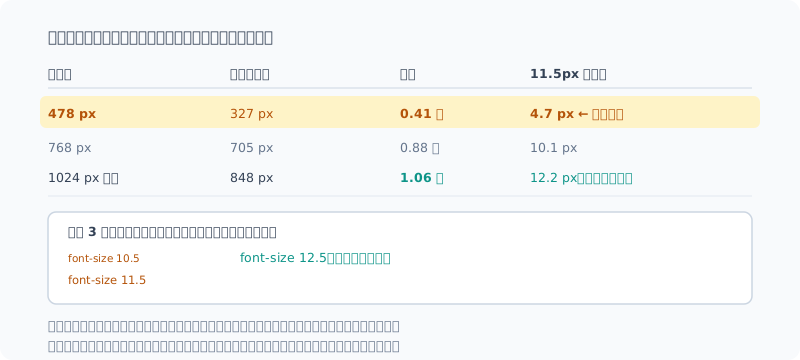
| 画面幅 | 図の表示幅 | 倍率 | 11.5px の実寸 |
|---|---|---|---|
| 478 px | 327 px | 0.41 倍 | 4.7 px |
| 768 px | 705 px | 0.88 倍 | 10.1 px |
| 1024 px 以上 | 848 px | 1.06 倍 | 12.2 px |
デスクトップでは縮んでいませんでした。 むしろ 1.06 倍に拡大されています。 本文カラムの上限が 848px で、幅 800 の SVG はそれより小さいからです。
縮むのは狭い画面でした。478px のとき 0.41 倍まで落ちて、 11.5px は 4.7px になります。これは読めません。
つまり最初に「読めない」と感じたのは、たまたま狭いプレビュー枠で見ていたからでした。 対処(文字を大きくする)は結果的に正しかったのですが、 理由を取り違えたまま全図を直していたことになります。
上の図の 3 行は、いまあなたの画面幅での実際の大きさです。 スマホで読んでいるなら、10.5px の行は読めないはずです。
| 役割 | px |
|---|---|
| 図タイトル | 15(bold) |
| 強調した数値 | 14〜17(bold) |
| 等幅(パス・コマンド) | 13 |
| 本文・ラベル | 12.5 |
| 目盛り | 11.5 |
配色の検証ツールは色は見てくれますが、 縮んだ結果が読めるかは教えてくれません。
そして今回分かったとおり、実機で見るだけでも足りません。 「どの画面幅で見たか」で結論が変わります。 デスクトップだけ見て「読める」と判断すると、スマホの読者に読めない図を出します。
失敗 2: 棒グラフの原点が、目盛りの途中にあった
もうひとつ、もっと悪い間違いです。
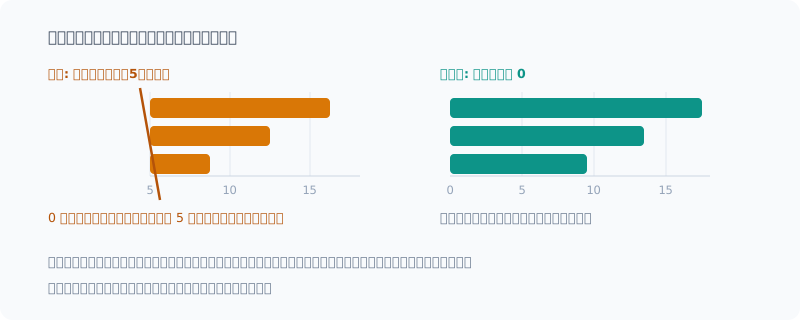
グリッド線を「5, 10, 15, 20, 25」の位置に引いて、 バーの起点を**いちばん左のグリッド線(=5)**に置いていました。 0 が軸の外にある状態です。
結果、すべての棒が 5 だけ水増しされて見えていました。 22.12 と 5.56 の比が、見た目では 4 倍ではなく 2.4 倍に見えます。
たちが悪いのは、それらしく見えてしまうことです。 目盛りもバーも個別には正しく描けているので、実機で並べて見るまで気づきませんでした。
対策はこうしました。
グリッド線の座標とバーの起点を、同じ計算式から出す。
x0 = 290          # 0 の位置
scale = 16.8      # 1 単位あたりの px
グリッド線: x0 + 値 * scale
バーの幅  : 値 * scale   (起点は必ず x0)
別々に手で書いていると、片方だけ直したときにずれます。
グラフを描くときの約束
失敗から決めたルールです。
- 棒グラフは必ず 0 から。 目盛りの原点とバーの起点を一致させる
- 軸は 1 本だけ。 単位の違う量を左右の軸に分けない。分けたいなら図を 2 枚にする
- 値ラベルは全点に付けない。 端点・最大・最小など意味のある点だけ
- 2 系列以上なら凡例を必ず置く。 色だけで区別させない
- 基準線や「期待値」は彩度のないグレー破線。 データと見分けられるように
- 棒は高さ 20〜26px・角丸 4px、線は 2px、マーカーは r=4 に背景色の縁取り
「単位の違う 2 つを 1 枚に詰めない」は、実際に守って良かったルールです。 ファイルサイズと生成速度を並べたい回があり、素直に**小倍数(2 枚並べ)**にしました。 左右に別の軸を置いていたら、読者に「どちらの軸か」を毎回考えさせることになります。
図を入れる判断
なんでも図にしません。 入れる基準をこう決めています。
入れる価値があるもの
- 構造・位置関係(何がどこにあるか、どこまでが自動でどこからが手作業か)
- 量の比較(内訳、大小関係)
- 時間変化と、そこで起きた想定外
入れないほうがよいもの
- 手順の羅列 — 箇条書きのほうが速い
- コマンドの出力 — コードブロックのほうが正確
- 文章 1 行で済む関係
1 記事あたり 2〜4 枚が目安です。 16 枚を 8 記事で割ると平均 2 枚で、だいたいこの範囲に収まっています。
代替テキストに数値を入れる
alt は「〜の図」で終わらせず、図から読み取れる事実を書きます。
悪い例。
いまの書き方。
長くなりますが、画像が表示されない環境でも内容が伝わるのと、 検索に引っかかるのと、自分で後から探すときに効きます。
確認の手順
最後に必ずやることを決めています。
- ブラウザで実寸表示して目で見る。 文字の重なり・はみ出し・軸ズレは、 検証ツールでは出ない
- 狭い画面幅でも見る。 デスクトップだけでは足りない。 400px 前後まで絞って、目盛りが読めるか確かめる
- 数値が本文と一致しているか照合する
altに主要な数値が入っているか確認する
2 を測るなら、ブラウザのコンソールで一行です。
const w = document.querySelector('article img').getBoundingClientRect().width;
console.log({ 倍率: w / 800, '11.5pxの実寸': 11.5 * w / 800 });ローカルで見るだけなら、public を静的配信すれば足ります。
npx --yes serve -l 4321 <プロジェクト>/publicこの「実機で見る」を省いた回に、上の失敗 2 つを両方やりました。 作った直後の自分は、自分の図が読めてしまうので当てになりません。
まとめ
- 図は手書き SVG。差分が読めて、記事と一緒に管理できる
- 配色は 1 度決めて検証ツールにかけ、あとは使い回す
- 表示倍率は画面幅で変わる。 デスクトップでは 1.06 倍だが、 狭い画面では 0.41 倍まで落ちる。文字は 12.5 / 11.5px が下限
- 棒グラフの原点とグリッドは同じ式から出す。 別々に書くとずれる
- 図を入れるかどうかは判断する。 手順やコマンド出力は文章のほうが速い
- 実機で、しかも狭い画面幅でも見る
この記事を書きながら、自分のルールの根拠が間違っていたことに気づきました。 「本文カラムで 0.8 倍に縮む」と思い込んでいたのが、測ったら 1.06 倍だったわけです。 対処は合っていたので実害はありませんでしたが、 正しい対処と正しい理解は別物だと分かりました。
理由を間違えたまま直したルールは、条件が変わったときに機能しません。 ルールを書き出す価値は、手順が残ることより、 根拠が書かれていて後から検証できることのほうにありそうです。
Introduction
While writing the local LLM series, I ended up with 16 figures.
At first I made each one on the spot, but I kept going through the same hesitations, so I decided to write them down as rules. How to pick colors, how many px the text should be, and whether a figure belongs there at all.
This post records those rules and the mistakes I made before settling on them.
Why SVG
Every figure is hand-written SVG. I don’t use any drawing tool.
- It’s text, so diffs are readable. When I change one number, git shows what changed
- It’s version-controlled together with the post
- It doesn’t break when scaled up
- I’m not tied to a drawing tool’s file format
The trade-off is that I have to calculate the coordinates myself. That turned out to be exactly where I made the most mistakes this time.
Deciding Where Figures Live
I followed the conventions of the static site generator I use (Astro):
public/img/blogs/<記事のファイル名.md>/<図の名前>.svgPosts reference them like this:
Existing posts already included the .md in the folder name, so I kept that.
It looks odd at first, but each post file and its figure folder sit side by side, one to one,
so when I delete a post I know exactly which figures to delete too.
Figure names are lowercase kebab-case that says what’s in them (shrink-trap, zero-origin).
I don’t use sequential numbers. Adding to a post later would shift the numbers and cause trouble.
Pick the Colors Once and Reuse Them
So I wouldn’t agonize every time, I fixed the colors to match the style of existing posts.
| Use | Color |
|---|---|
| Accent (main subject, first series) | #0d9488 |
| Warning, second series | #d97706 (text: #b45309) |
| Headings, body text | #334155 |
| Notes | #64748b |
| Tick labels | #94a3b8 |
| Borders, grid | #cbd5e1 / #e2e8f0 |
| Background | #f8fafc |
When I need a third color, I add #4f46e5.
I ran these three colors through a checker for distinguishability under color vision deficiencies and for contrast, and confirmed they pass every item. It’s a small extra step so I don’t decide “probably fine” by eye.
When I want a fourth color, I first rethink the grouping instead of adding a color. A figure that can’t be read without telling things apart by color is usually trying to cram in too much.
Mistake 1: The Text Was Too Small, So I Remade Every Figure
At first I made the tick labels 10.5px and captions 11.5px. They were perfectly readable on the screen I was editing on.
When I opened the post in a narrow preview pane, I couldn’t read them. I set 12.5px / 11.5px as the minimum and remade every figure.
…That’s what I was about to write, but when I actually measured it just to be sure, my understanding turned out to be wrong.
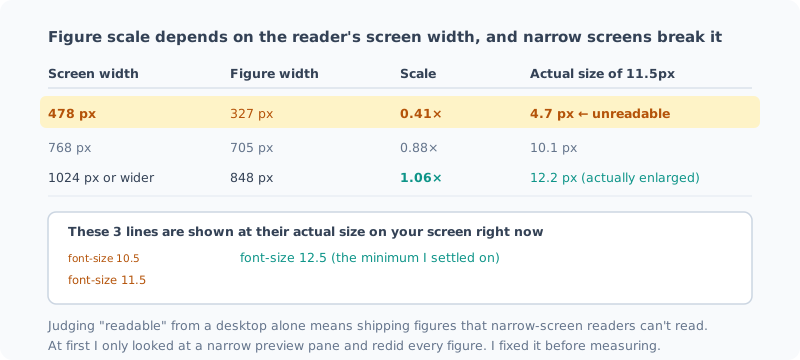
| Screen width | Figure display width | Scale | Actual size of 11.5px |
|---|---|---|---|
| 478 px | 327 px | 0.41× | 4.7 px |
| 768 px | 705 px | 0.88× | 10.1 px |
| 1024 px or wider | 848 px | 1.06× | 12.2 px |
On desktop, the figures weren’t shrinking at all. They were actually enlarged 1.06 times. The body column maxes out at 848px, and an SVG 800 wide is smaller than that.
What shrinks them is a narrow screen. At 478px the scale drops to 0.41×, and 11.5px becomes 4.7px. That’s unreadable.
In other words, the first time I felt “I can’t read this”, it was only because I happened to be looking at a narrow preview pane. The fix (making the text bigger) turned out to be right, but I had redone every figure while misunderstanding the reason.
The three lines in the figure above are shown at their actual size on your screen width right now. If you’re reading on a phone, the 10.5px line should be unreadable.
| Role | px |
|---|---|
| Figure title | 15 (bold) |
| Highlighted numbers | 14–17 (bold) |
| Monospace (paths, commands) | 13 |
| Body text, labels | 12.5 |
| Tick labels | 11.5 |
The color checker looks at colors, but it doesn’t tell you whether the shrunk result is readable.
And as I found out this time, looking at it on a real screen isn’t enough either. The conclusion changes depending on “which screen width you looked at it on”. If you only check on a desktop and decide “it’s readable”, you ship figures your phone readers can’t read.
Mistake 2: The Bar Chart’s Origin Was Partway Along the Axis
Here’s another one, and a worse one.
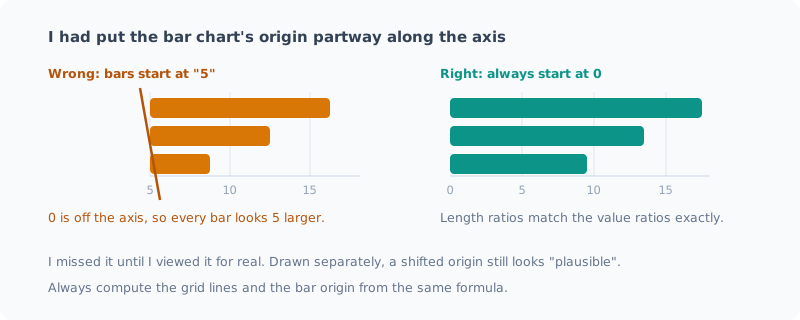
I had drawn grid lines at “5, 10, 15, 20, 25”, and placed the start of the bars on the leftmost grid line (= 5). That means 0 was off the axis.
As a result, every bar looked 5 larger than it was. The ratio between 22.12 and 5.56 looked like 2.4 times instead of 4 times.
The nasty part is that it looks plausible. The ticks and the bars were each drawn correctly on their own, so I didn’t notice until I put them side by side on a real screen.
Here’s the countermeasure:
Compute the grid line coordinates and the bar origin from the same formula.
x0 = 290          # 0 の位置
scale = 16.8      # 1 単位あたりの px
グリッド線: x0 + 値 * scale
バーの幅  : 値 * scale   (起点は必ず x0)
If you write them by hand separately, fixing only one of them throws them out of line.
Rules for Drawing Charts
These are the rules I settled on from those mistakes.
- Bar charts always start at 0. The tick origin and the bar origin must match
- Only one axis. Don’t split quantities with different units onto left and right axes. If you want to, make two figures
- Don’t label every point. Only meaningful ones, like the ends, the maximum and the minimum
- With two or more series, always include a legend. Don’t make readers tell them apart by color alone
- Baselines and “expected values” are gray dashed lines with no saturation. So they can be told apart from the data
- Bars are 20–26px tall with 4px rounded corners, lines are 2px, markers are r=4 with a background-colored outline
“Don’t cram two things with different units into one figure” is a rule I was glad I actually followed. In one post I wanted to show file size next to generation speed, so I simply used small multiples (two figures side by side). With separate axes on the left and right, readers would have had to think “which axis is this?” every time.
Deciding Whether to Include a Figure
I don’t turn everything into a figure. These are my criteria:
Worth including
- Structure and position (what is where, where automation ends and manual work begins)
- Comparisons of quantities (breakdowns, which is bigger)
- Change over time, and the unexpected things that happened along the way
Better left out
- A list of steps — a bulleted list is faster
- Command output — a code block is more accurate
- A relationship that one sentence can describe
I aim for 2–4 figures per post. 16 figures over 8 posts is an average of 2, so I’ve mostly stayed in that range.
Put Numbers in the Alt Text
I don’t end alt with “a figure of …”; I write the facts you can read from the figure.
A bad example:
How I write it now:
It gets long, but the content comes across even where images don’t load, it shows up in search, and it helps when I’m looking for something later myself.
How I Check
I’ve decided on things I always do at the end:
- View it at actual size in a browser. Overlapping text, overflow and misaligned axes don’t show up in a checker
- Look at a narrow screen width too. Desktop alone isn’t enough. Narrow it to around 400px and check whether the tick labels are readable
- Check that the numbers match the body text
- Check that
altcontains the key numbers
To measure step 2, one line in the browser console does it:
const w = document.querySelector('article img').getBoundingClientRect().width;
console.log({ 倍率: w / 800, '11.5pxの実寸': 11.5 * w / 800 });
If you just want to look at it locally, serving public statically is enough:
npx --yes serve -l 4321 <プロジェクト>/publicThe time I skipped this “look at it on a real screen” step was when I made both of the mistakes above. Right after making a figure, I can always read my own figure, so I can’t be trusted.
Summary
- Figures are hand-written SVG. Diffs are readable, and they’re managed together with the post
- Pick the colors once, run them through a checker, then reuse them
- The display scale changes with the screen width. It’s 1.06× on desktop, but drops to 0.41× on a narrow screen. 12.5 / 11.5px is the minimum for text
- Derive the bar chart’s origin and the grid from the same formula. Writing them separately makes them drift apart
- Decide whether a figure belongs. Steps and command output are faster as text
- Look at it on a real screen, including a narrow width
While writing this post, I realized the reasoning behind my own rule was wrong. I had assumed figures “shrink to 0.8× in the body column”, but when I measured, it was 1.06×. The fix was right, so no harm was done, but I learned that the right fix and the right understanding are two different things.
A rule fixed for the wrong reason stops working when conditions change. The value of writing rules down seems to lie less in keeping the steps and more in having the reasoning written down so it can be checked later.
関連記事 Related Posts
dev-orchestra で役割ごとに決まった指示を渡してみた Giving dev-orchestra Standing Instructions per Role
dev-orchestra 1.2.1 で入った instructions を試しました。implementer やレビュアーへの決まった指示をリポジトリに書いておくと、毎回のプロンプトに入ります。どう表示され、どこに入り、指示を変える変更がどう扱われるかを、実際の出力で確かめます。 I tried instructions, added in dev-orchestra 1.2.1. Standing instructions for the implementer or reviewers written in the repository go into every prompt. I check, with real output, how they are shown, where they go, and how a change to the instructions is treated.
[Released] dev-orchestra: 作業単位の並列実行と役割ごとの指示を追加 v1.1.0 - v1.2.1 [Released] dev-orchestra: Parallel Work Units and Per-Role Instructions v1.1.0 - v1.2.1
dev-orchestra の v1.1.0 から v1.2.1 までの変更をまとめました。計画を作業単位に分けて並べて走らせる機能、役割ごとに決まった指示を渡す機能、設計の前の質問、進み具合の報告の設定が入りました。Windows で出力を取り込んでいる人は、文字コードの変更に注意してください。 A roundup of dev-orchestra's changes from v1.1.0 to v1.2.1: running a plan as work units side by side, standing instructions per role, questions before the design, and settings for progress reports. If you capture its output on Windows, note the encoding change.
dev-orchestra の作業単位で、計画を分けて並べて実装してみた Splitting a Plan into dev-orchestra Work Units and Implementing Them Side by Side
dev-orchestra 1.2.0 で入った作業単位を試しました。計画に ## Units を書き、2 つの作業単位を別々の git worktree で並べて Claude に実装させ、作業ツリーへマージし、最後の統合の作業単位をその場で走らせるまでを、実際のコマンドと出力で追います。 I tried the work units added in dev-orchestra 1.2.0. I wrote a ## Units section in a plan, had Claude implement two units side by side in separate git worktrees, merged them into the working tree, and ran the final integration unit in place, with the actual commands and output.